Importing clients from Excel
Switching from a paper journal, a spreadsheet or another app? No need to enter clients one by one — the import wizard moves up to 500 rows at a time.
Step 1. Paste your table
Open "Clients" → "Client database" and click "Upload from Excel". Copy the clients in your spreadsheet (Excel, Google Sheets, Numbers) and paste them into the big field — just Ctrl+V.
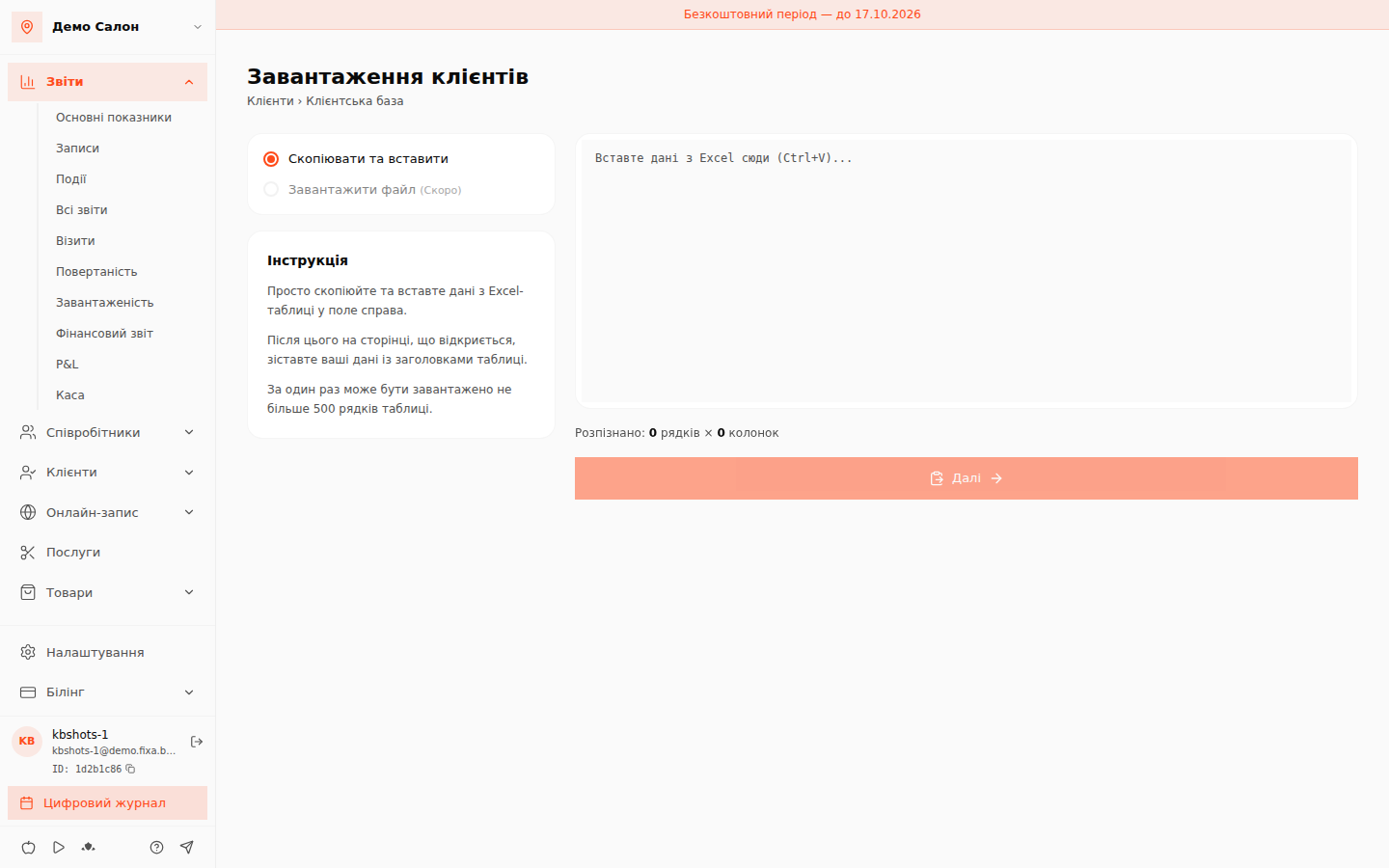
Step 2. Check the columns
The wizard recognises the headers ("Name", "Phone", "Email", "Tags"…) on its own and shows how many rows will be uploaded. If a column was detected incorrectly, pick the match manually.
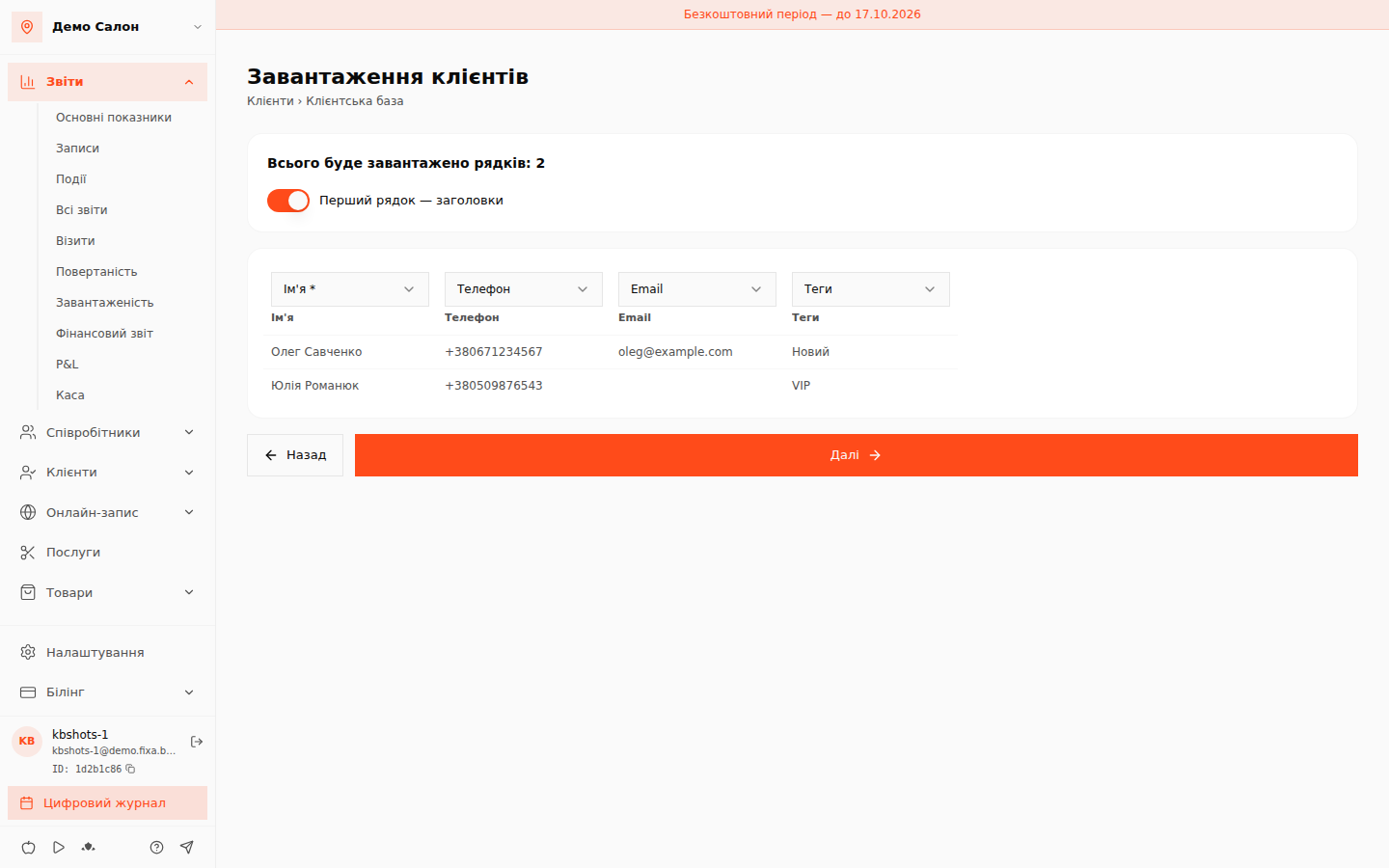
Supported fields:
| Field | Example | Note |
|---|---|---|
| Name | Olena Kovalenko | required |
| Phone | 0501234567 | format detected automatically |
| olena@example.com | ||
| Date of birth | 01.02.1990 | |
| Gender | f / m | |
| Notes | Ammonia allergy | goes into the card note |
| Tags | VIP, regular | several — comma-separated |
Step 3. Review and import
The review step shows how every row was parsed and highlights errors. Duplicates are detected by phone number: existing clients are skipped by default, but you can enable updating their data.
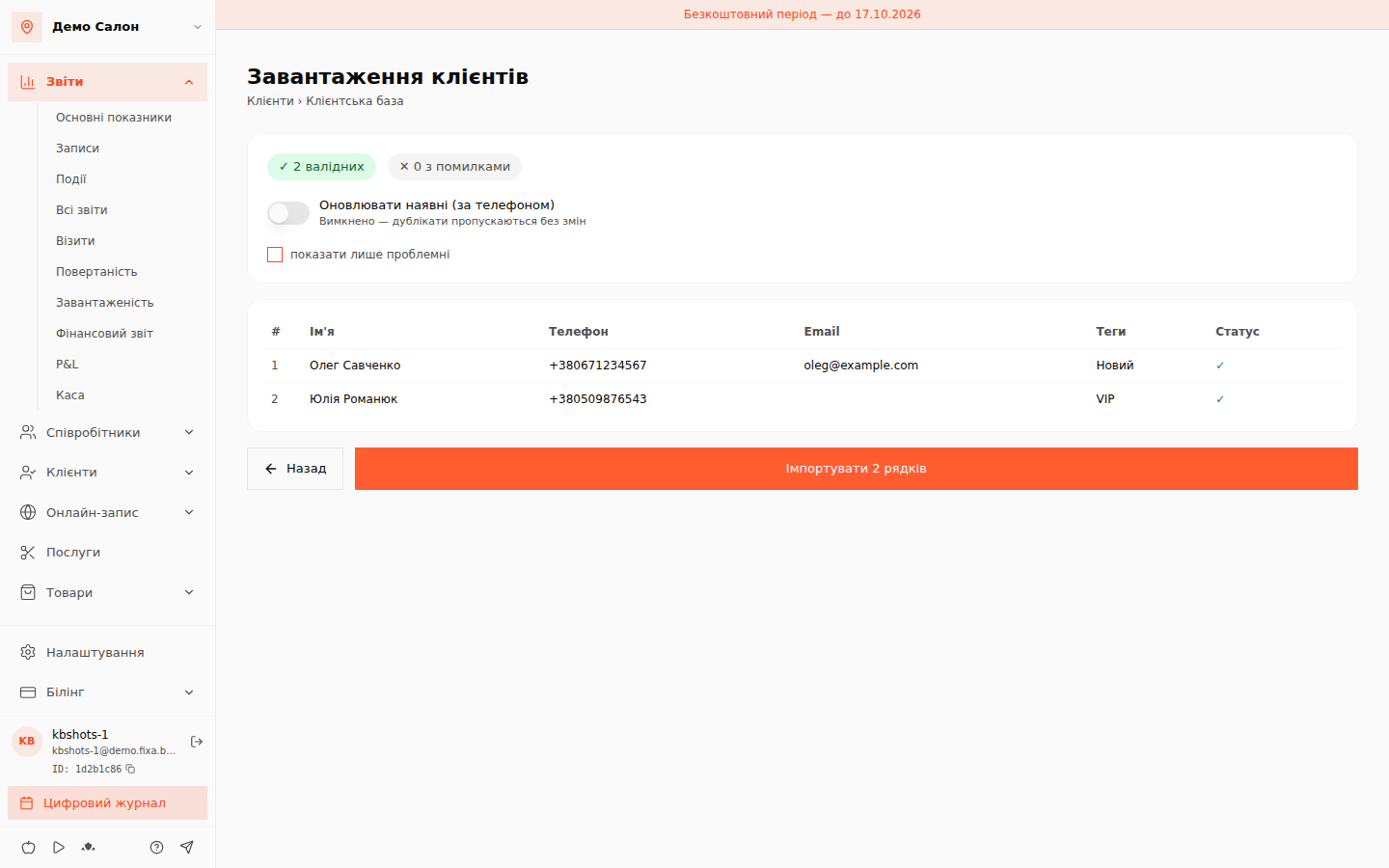
Click "Import" — and a moment later you''ll see the summary: how many were created, updated, skipped, and whether there were errors.
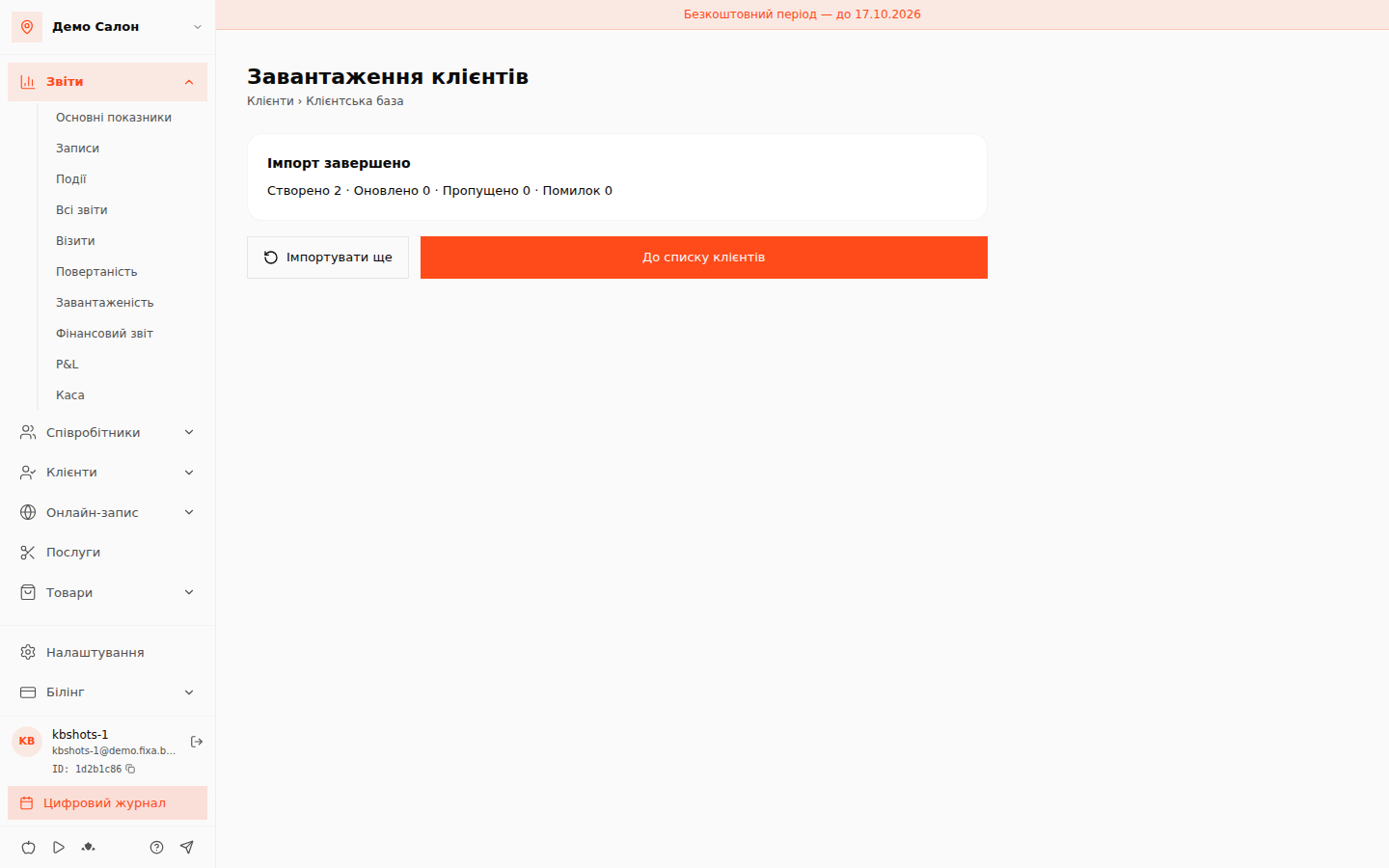
Tips
- If your table is bigger than 500 rows, split it into parts and repeat the import.
- Rows without a phone number are always created as new clients — check your table for duplicates beforehand.
- Imported clients get the source "import", so you can always tell them apart from those who came through online booking.