How to take a payment for a visit
Payment closes the visit financially: the money lands on the selected account, and the operation appears in financial operations and reports.
Take a payment
- Open the appointment in the calendar and press "Pay".
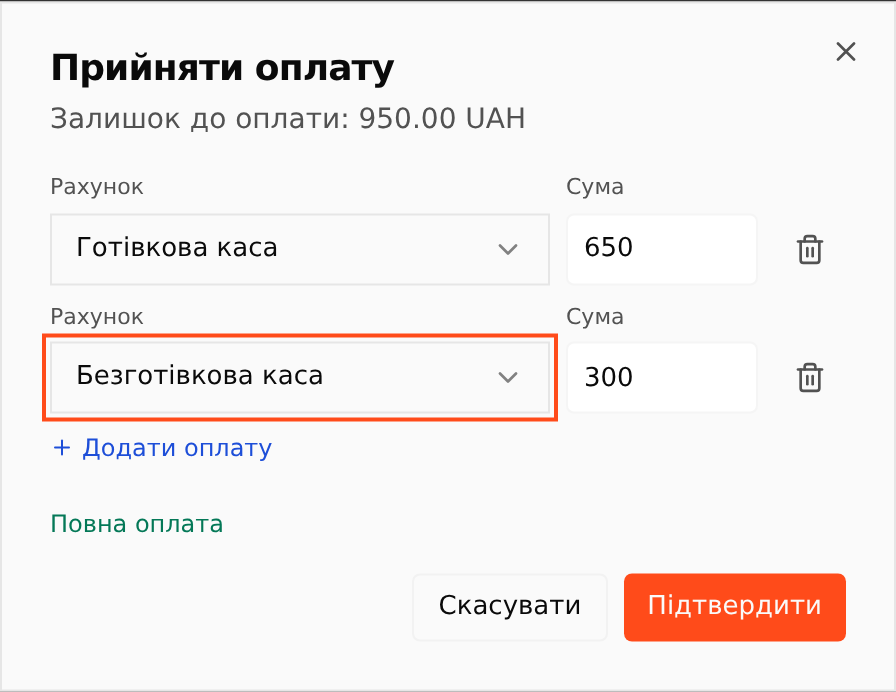
- In the "Take payment" dialog check the amount and choose the "Account" the money went to: a cash register or a cashless account.
- To split the bill between several payment methods (part cash, part card) press "+ Add payment" and add a second row with its own account and amount. Under the rows the system hints: "Full payment" or how much will remain unpaid.
- Confirm the payment.
💡 If the visit already took place and it is fully paid, the appointment moves to "Completed" by itself — no need to close it separately.
Partial payment and surcharge
You can take less than the full amount — a deposit, for example. The appointment will show "Paid: …" and a red "Due: …" line:
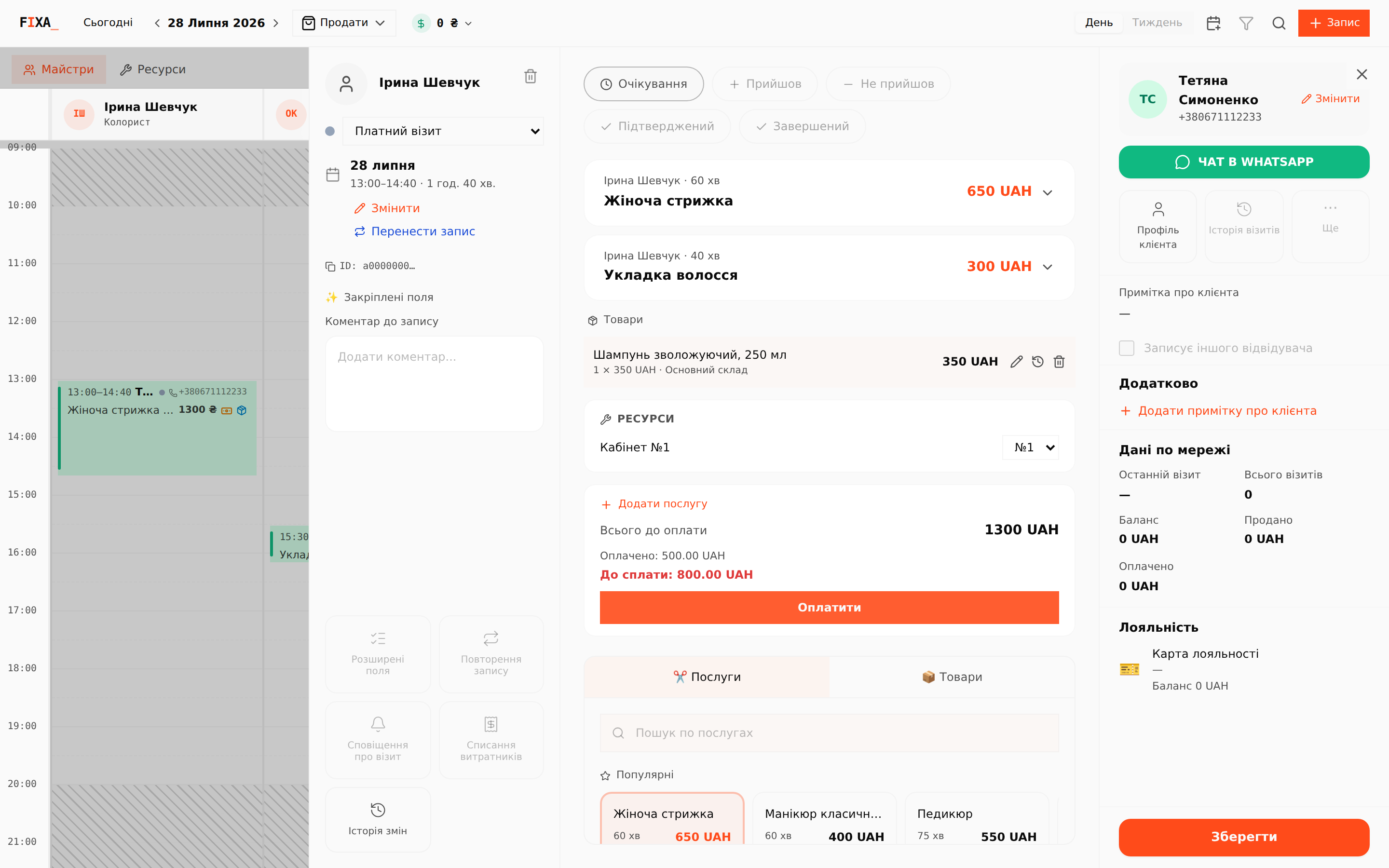
The rest is taken with the same "Pay" button — the dialog shows the remaining balance right away.
If you made a mistake
Open "Cash → Financial operations" and click the payment operation — the "Appointment payment" view lists every payment of this visit:
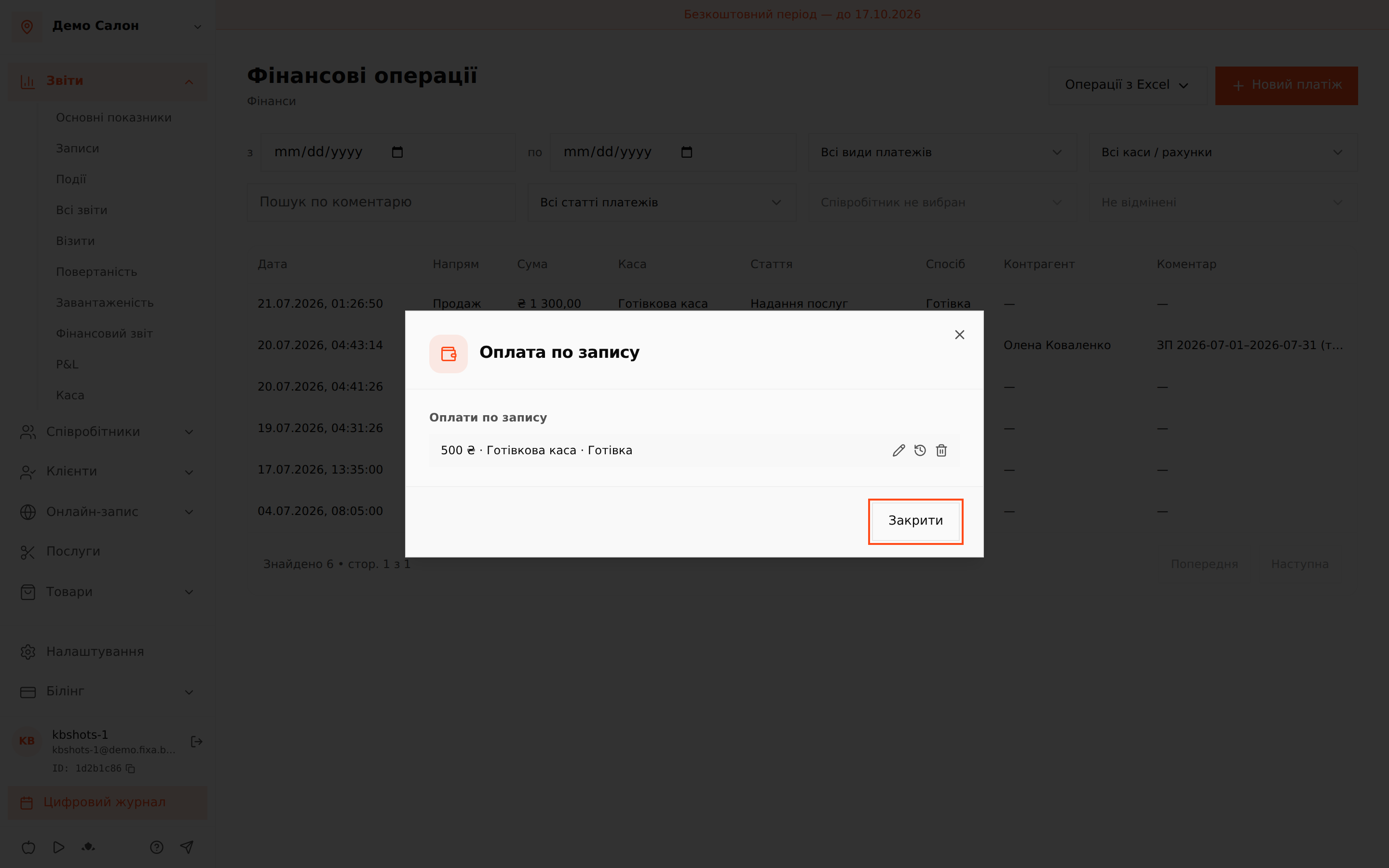
- Pencil — change the amount or the account.
- Clock — change history.
- Trash — cancel the payment: the system asks for confirmation and performs a reversal (storno). The operation history is fully preserved, and the appointment debt becomes visible again.
Where to see it
- "Reports → Daily cash" — the day's revenue by register.
- "Cash → Financial operations" — the feed of all operations with payment items.
- Payment items (e.g. "Services", "Product sales") are applied automatically — the reference lives in "Cash → Payment items".