Resources: rooms, chairs and equipment
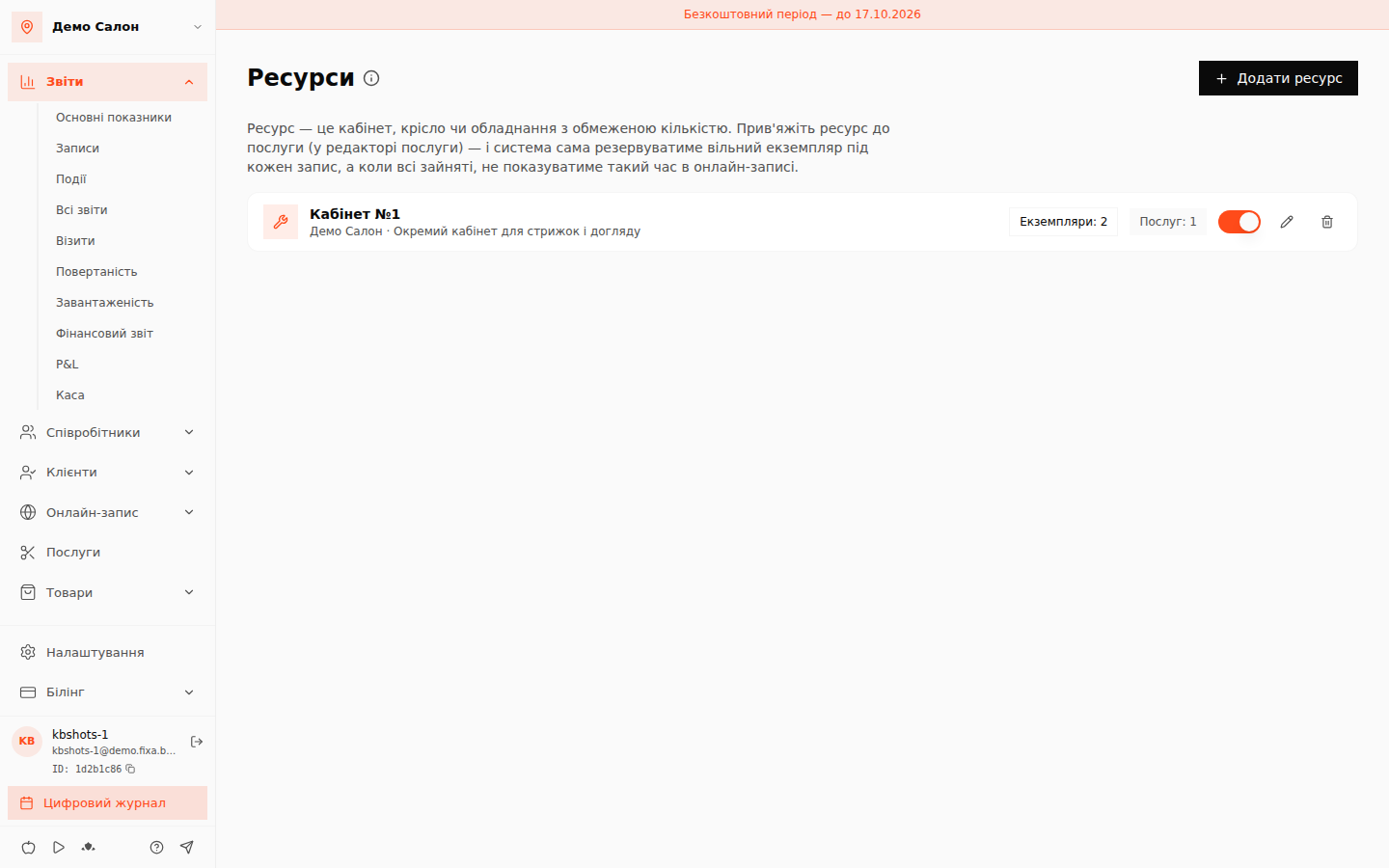
A resource is a room, chair or device that exists in limited quantity. Even with two masters free, two procedures can''t happen at once if there is only one room. The "Resources" section in the sidebar handles this automatically.
Creating a resource
- Open "Resources" → "Add resource".
- Enter a name (e.g. "Room 1"), the number of instances — how many identical spots physically exist (two massage tables = 2 instances) — and an optional description.
- The pencil next to a resource lets you rename instances, add new ones or deactivate extras; the switch disables the whole resource.
Linking to services
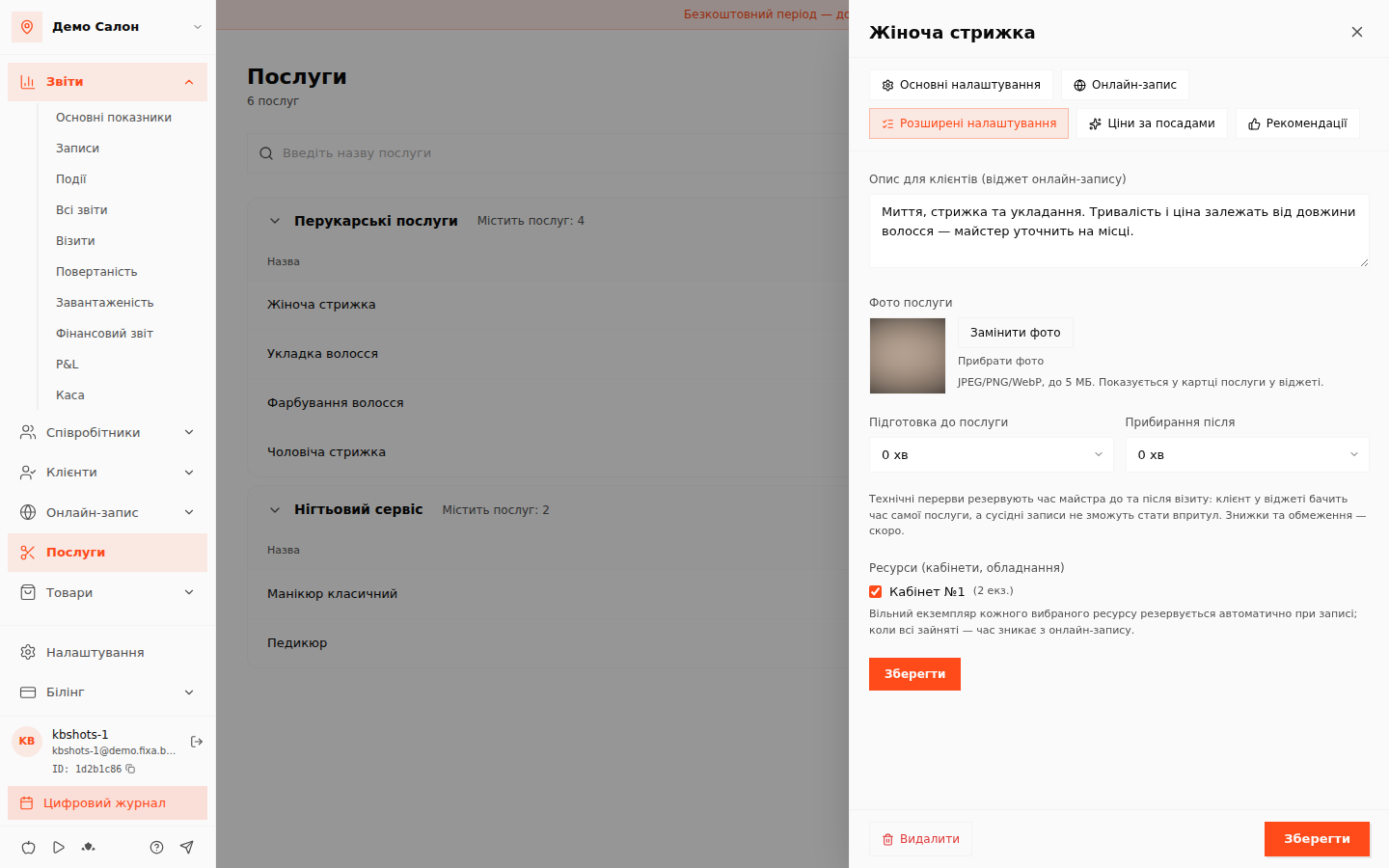
Open a service in "Services" → the "Advanced settings" tab → the "Resources (rooms, equipment)" block, and tick which resources this service needs.
What happens next — automatically
- When an appointment is created (in the calendar or online by a client), the system reserves a free instance of every required resource — buffer times included.
- When all instances are busy, the time disappears from online booking — even if another master is free. Overbooking the room becomes impossible.
- If an admin books a busy slot manually, the system says honestly: "Resource 'Room 1' is busy at the selected time".
- The appointment panel has a "Resources" section: you can see which instance is reserved and manually move the appointment to another free one.
- Rescheduling re-reserves instances for the new time; cancelling frees them.
Clients never see resources in the booking widget — it is an internal mechanism that simply hides unavailable times.