How to import services from Excel
If you already keep your price list in Excel or Google Sheets, there is no need to create services one by one. The import wizard transfers up to 500 rows at a time and creates missing categories automatically.
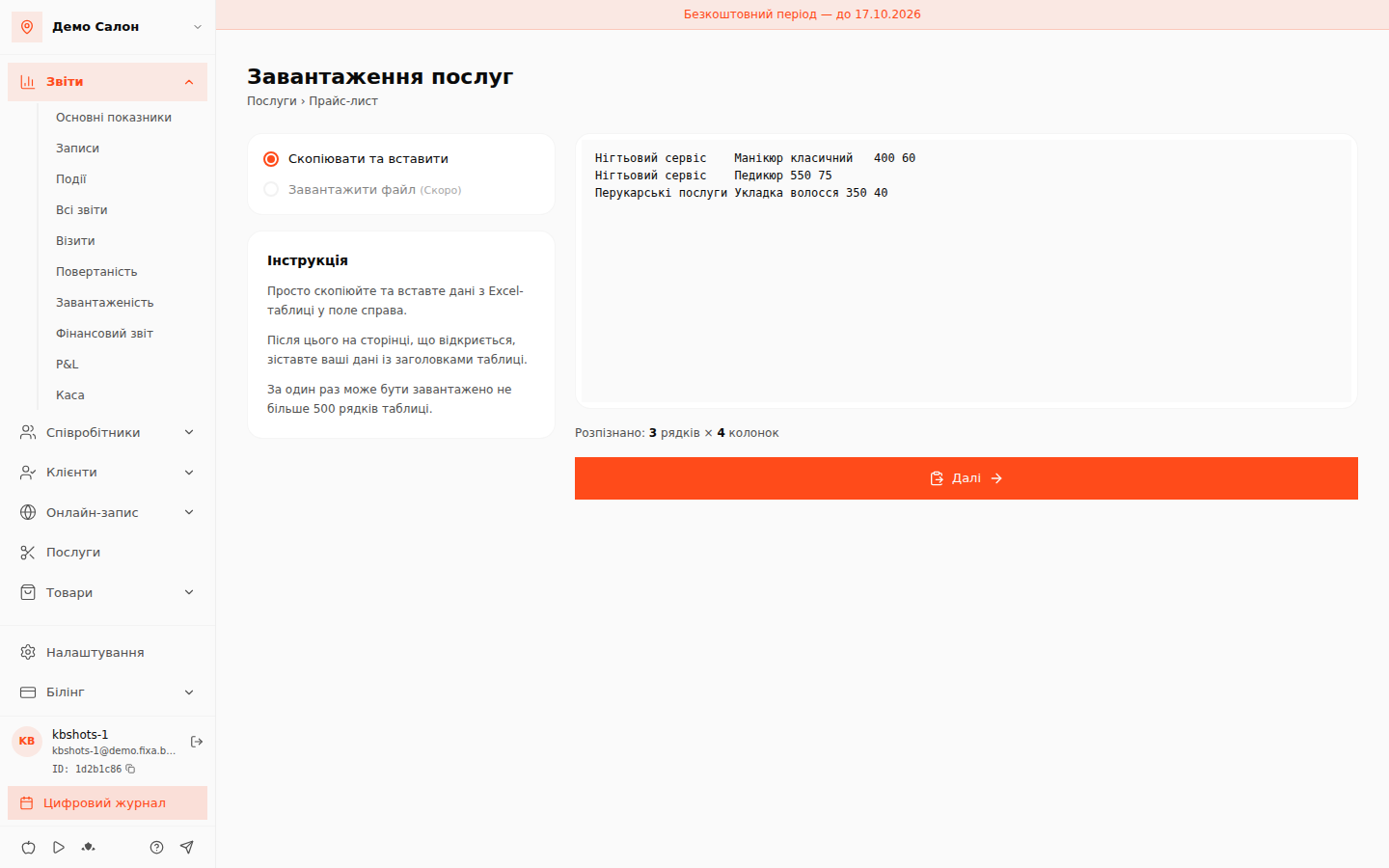
Step 1. Copy and paste the table
- Open «Послуги» (Services) and click «Завантажити з Excel» (Import from Excel).
- Select the service rows in your spreadsheet and copy them (Ctrl+C).
- Paste into the wizard field (Ctrl+V) — a counter «Розпізнано: N рядків × M колонок» (Recognized: N rows × M columns) appears below.
- Click «Далі» (Next).
Up to 500 rows can be imported at a time; if you have more services, simply repeat the import in batches.
Step 2. Match the columns
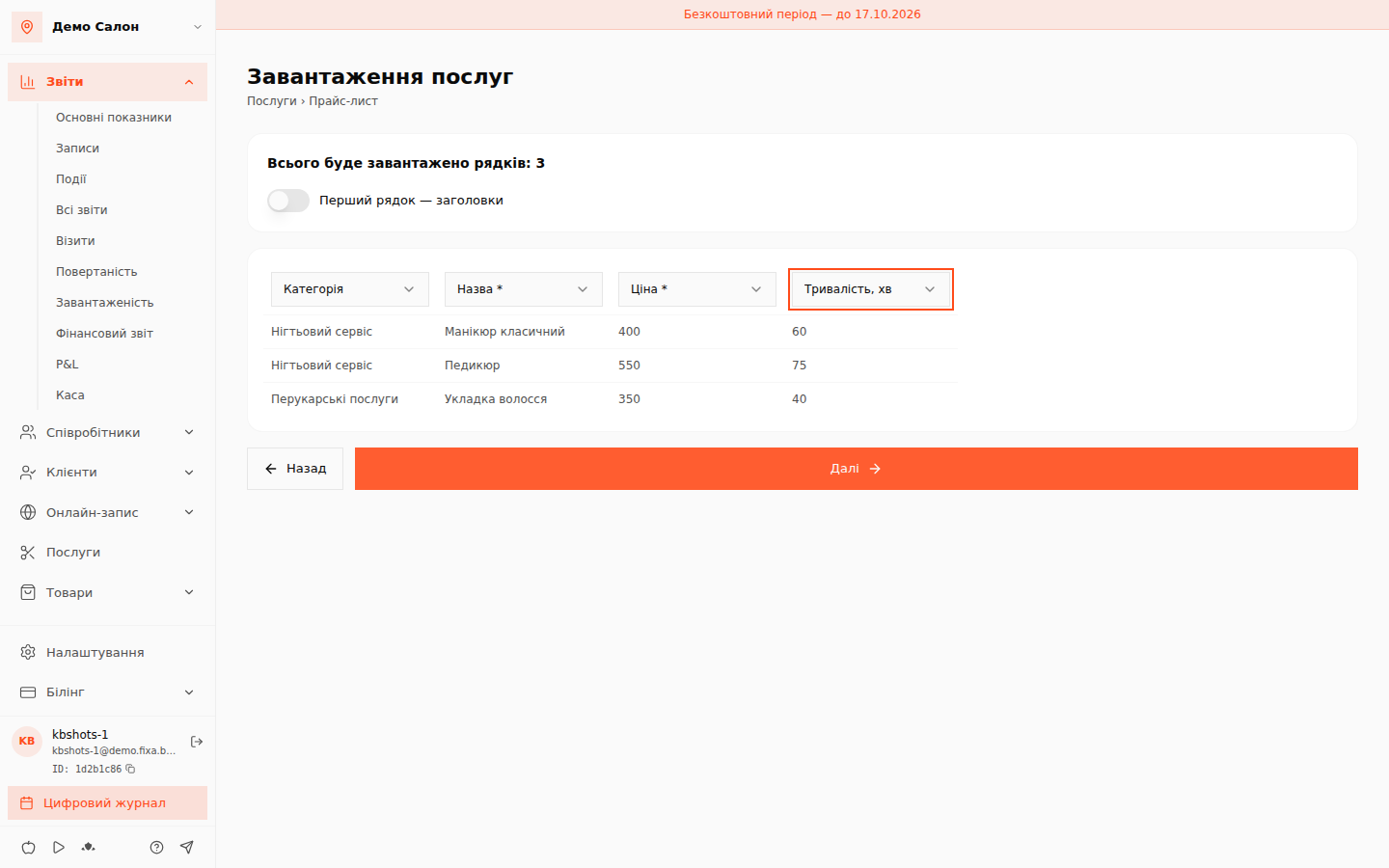
Above each column choose what it contains:
- Назва (Name) — required.
- Ціна (Price) — required; enter plain numbers without currency or thousand separators.
- Категорія (Category), Тривалість, хв (Duration, min), Опис (Description), Онлайн-запис (Online booking) — optional.
If the first row of your table is a header row ("Name", "Price"…), enable the «Перший рядок — заголовки» (First row is headers) switch and it will be excluded from the import. Leave unneeded columns unassigned — they are ignored.
Step 3. Review and import
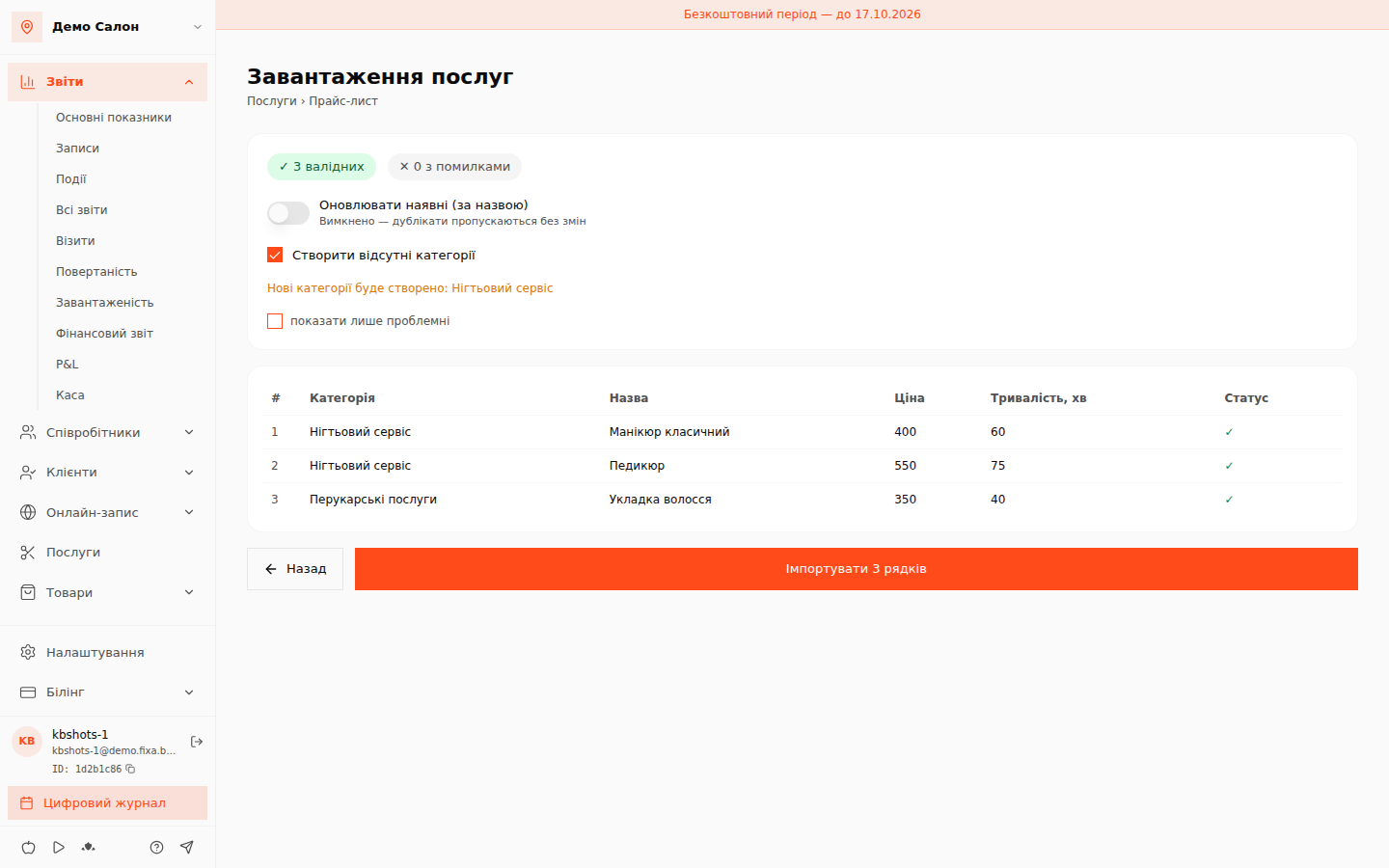
The wizard validates every row and shows a summary: how many are valid and how many contain errors (filter them with "показати лише проблемні" — show only problematic). Two useful options live here:
- «Створити відсутні категорії» (Create missing categories) — categories from your table that do not exist in FIXA yet are created automatically.
- «Оновлювати наявні (за назвою)» (Update existing by name) — when enabled, services with the same name are updated with the new data; when disabled, duplicates are skipped untouched.
Click «Імпортувати N рядків» (Import N rows).
Done
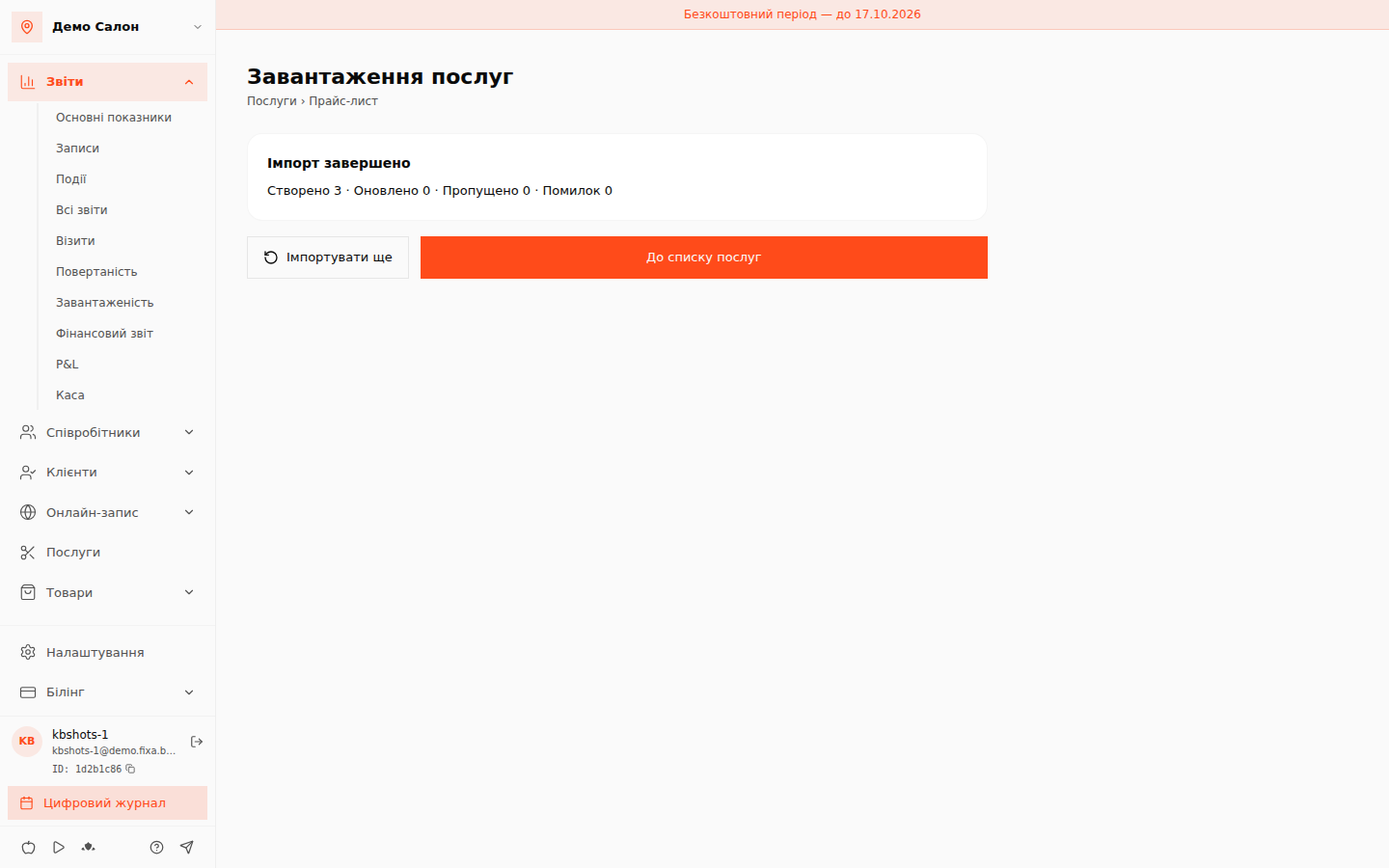
After the import FIXA shows the summary: how many were created, updated, skipped and failed. New services immediately appear in the «Послуги» (Services) list under their categories.
Two steps remain to make the services fully operational:
- assign the specialists who perform each service (see "How to link specialists to services");
- if needed, set up prices per position (see "How to add services, categories and prices per position").