Photos, descriptions and buffer times: service cards that sell
A client in the widget chooses with their eyes: a service with a photo and a clear description beats a dry line with a price. All of it is configured on the service card.
Where to configure
Open "Services", click the pencil next to a service and switch to the "Advanced settings" tab.
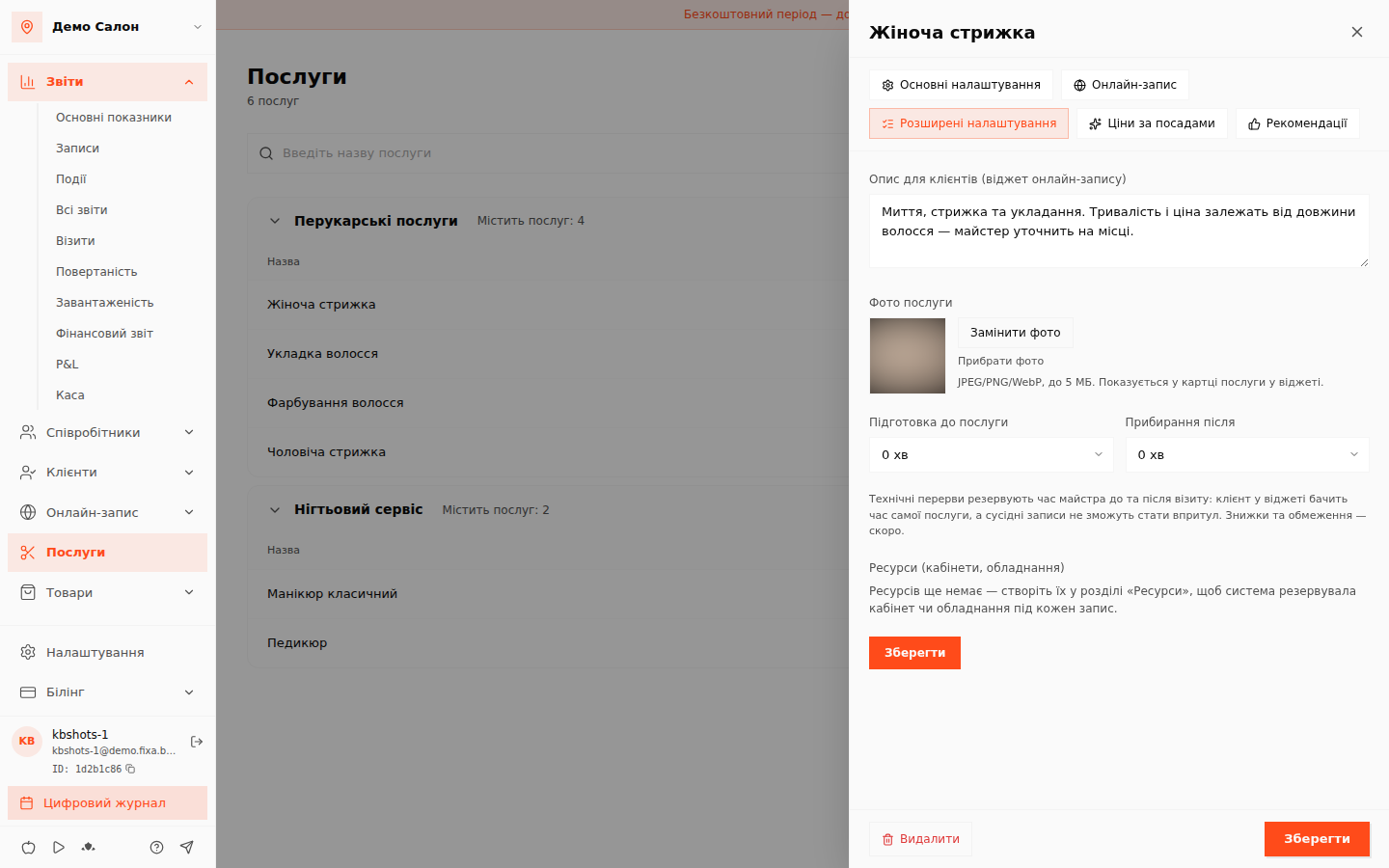
- Service description — briefly: what's included, who it's for, what the price depends on;
- Service photo — upload a good horizontal image;
- Buffer times — reserved master time before and/or after the visit: cleanup, disinfection, preparation. The client never sees these minutes — they are simply excluded from available slots, so the next booking won't "step on" the cleanup.
What the client sees
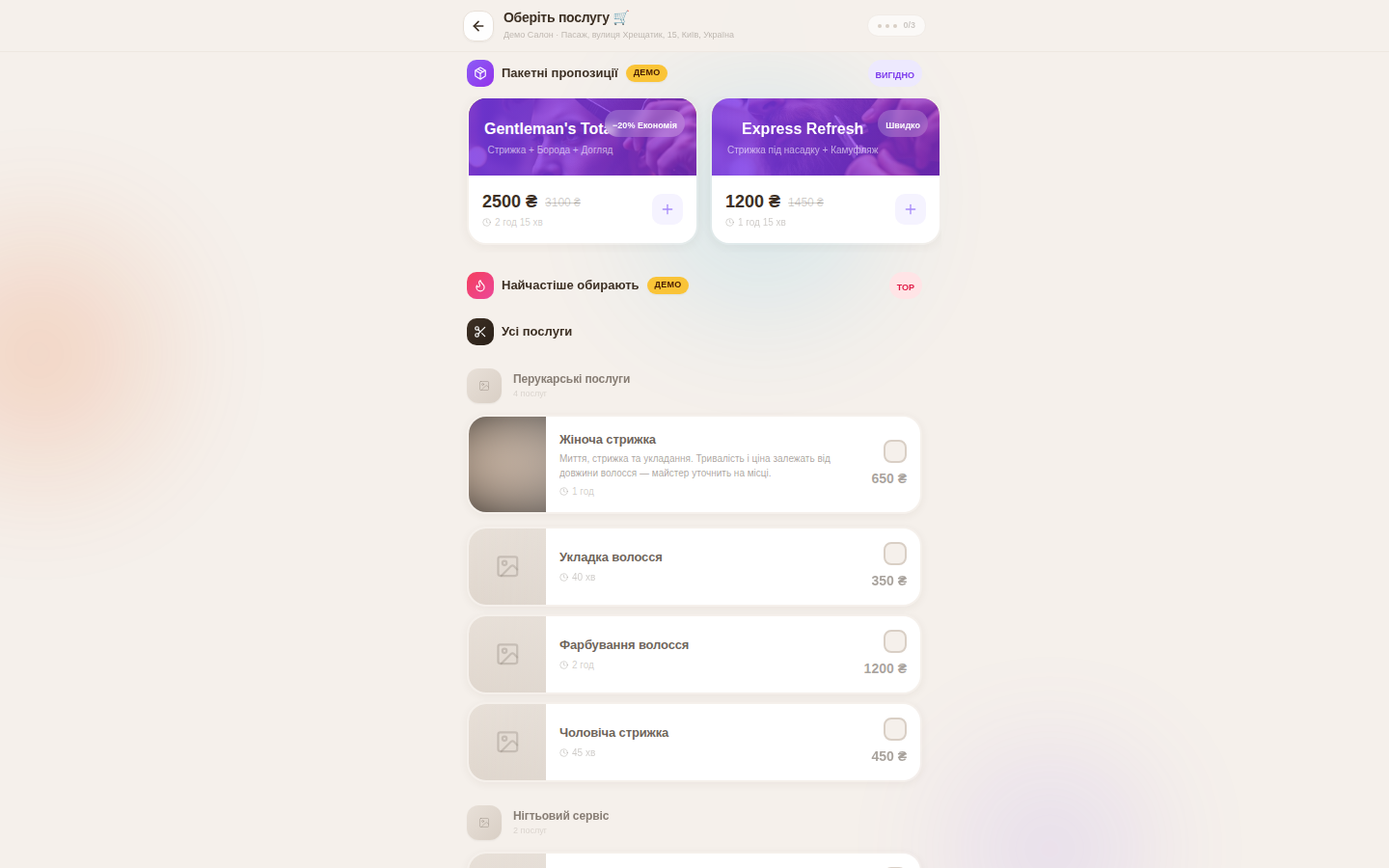
Services with photos get a large card; without one — a neat icon. Duration and price come from the service card, and if the master has an individual price or duration — the widget shows those.
Tip: start with your top-5 services by revenue — a photo and two sentences of description there give the biggest effect.