Products in a visit and walk-in sales
Products are sold in two ways: together with a visit (a shampoo with a haircut) or separately, without an appointment — to a walk-in customer.
Add a product to a visit
- Open the appointment in the calendar.
- Switch to the "📦 Products" tab at the bottom of the card.
- Find the product via search or in the list and click it — you will see "Product added".
The sold product appears in the "Products" block above the "Pay" button — with quantity, price and the warehouse it will be written off from:
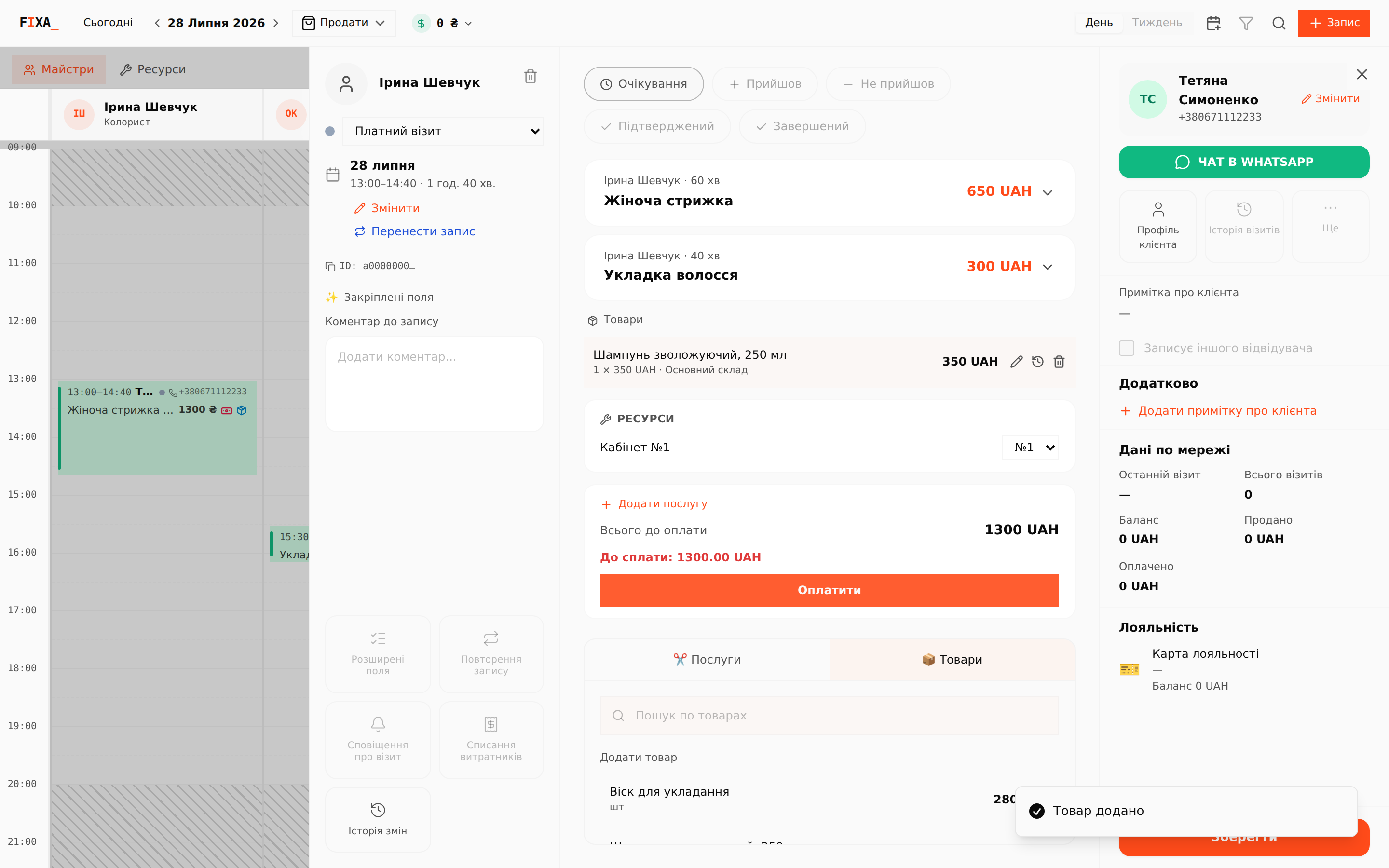
- Pencil — change quantity, price or discount.
- Clock — change history of this sale.
- Trash — cancel the sale (with confirmation).
The product total is added to the visit's "Total due", so the client pays for everything in one bill.
Sale without an appointment
When a customer just walks in for a product:
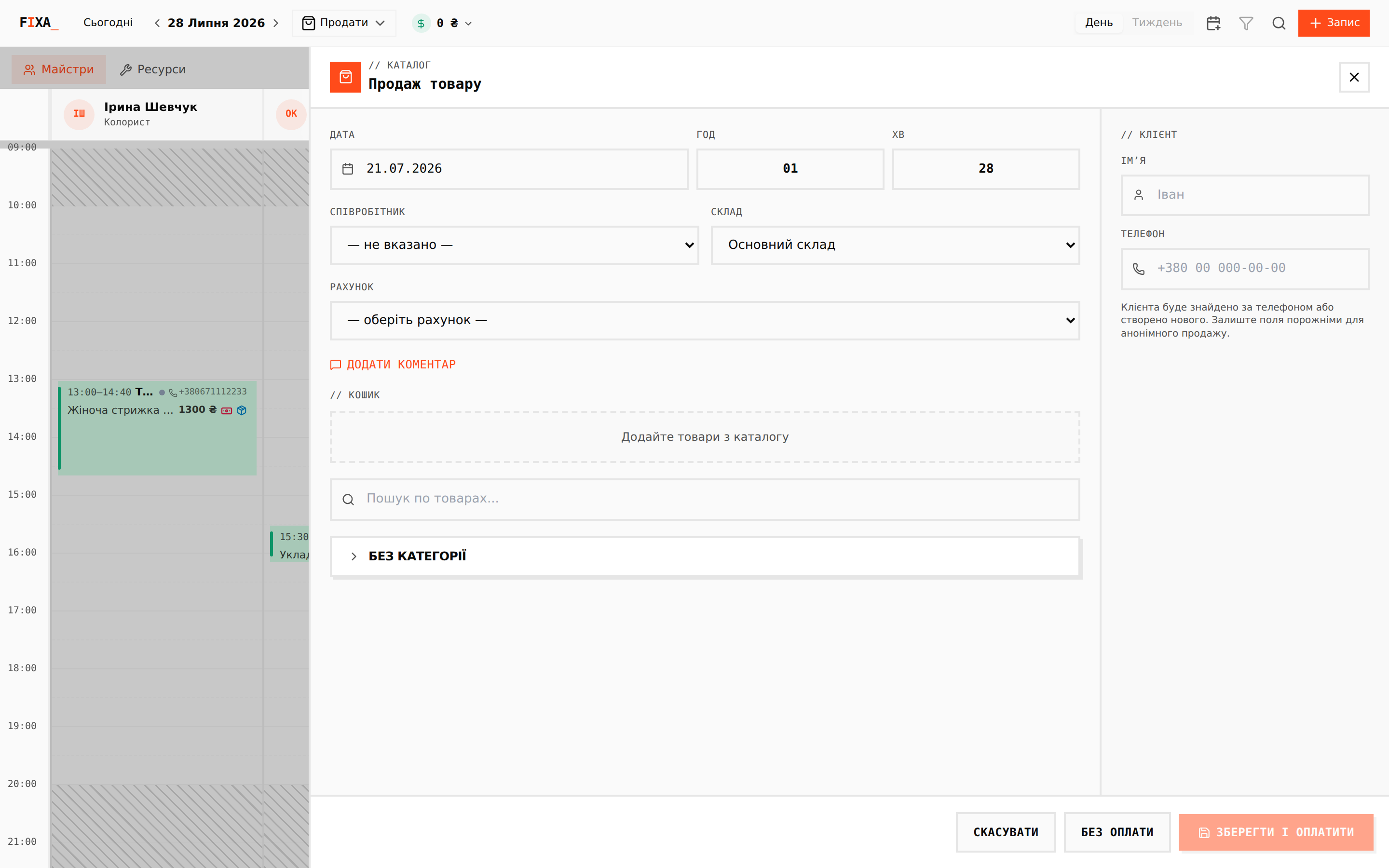
- In the calendar header press "Sell" → "Product sale".
- Choose the warehouse and the account, add products from the catalog to the cart.
- You can identify the client by phone number (found or created automatically) — or leave the fields empty for an anonymous sale.
- Finish with "Save and pay" — the money lands on the account immediately, or "Without payment" — the sale is recorded as a debt.
💡 If the product has inventory tracking, the sale automatically writes off stock from the selected warehouse.
Where to see it
- "Cash → Financial operations" — a "Sale" operation with the "Product sales" payment item.
- "Products → Stock operations" — the warehouse write-off.
- "Reports → Daily cash" — products as a separate line in the day's revenue.