How to invite a team member to the system
A team member signs in to FIXA with their own account and sees their schedule and their appointments. No need to share the owner''s password.
Invite while adding
- Open Team → List → Add team member.
- Enter the name and pick a specialization.
- Enable System access and enter the employee''s email.
- Click Save — an invitation email is sent.
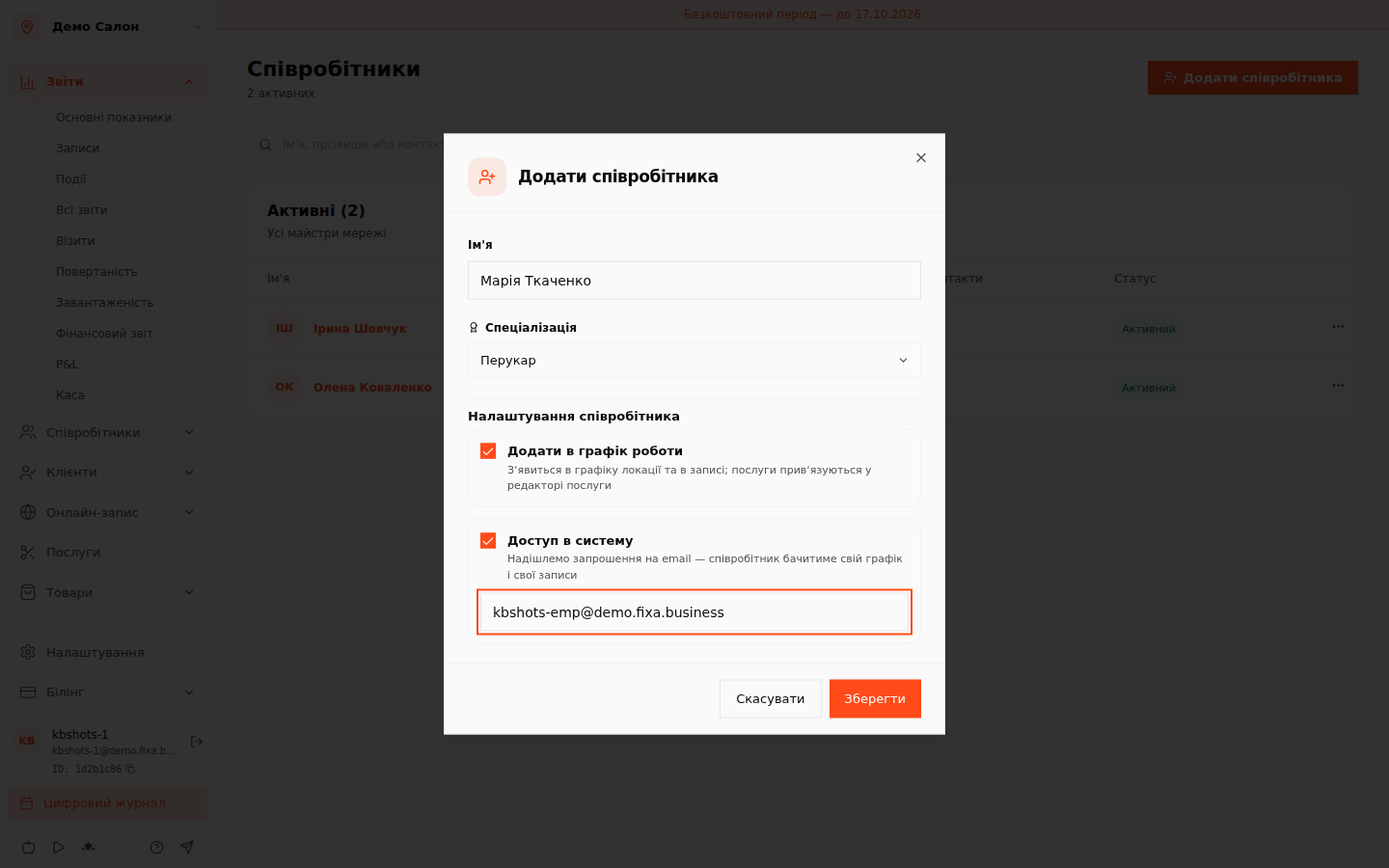
Invite an existing team member
If the professional is already on the list: open their card — in the System access block enter the email and click Invite to the system. Once linked, the card shows an Active badge with the email.
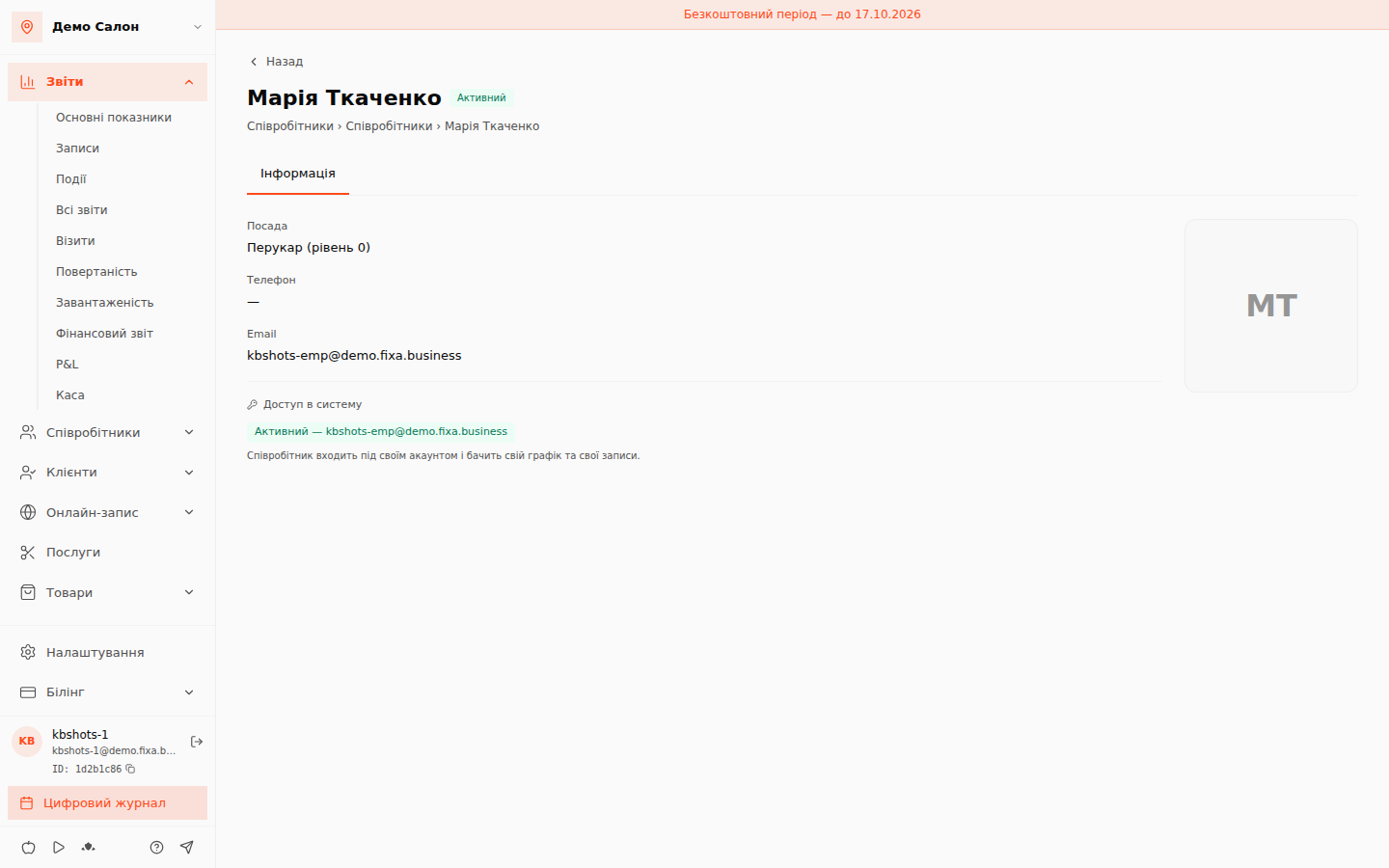
💡 If this email already has a FIXA account (say, the person is a client somewhere), the system simply links it — you''ll see "Account linked". One account can be both a client and a team member.
What the team member sees
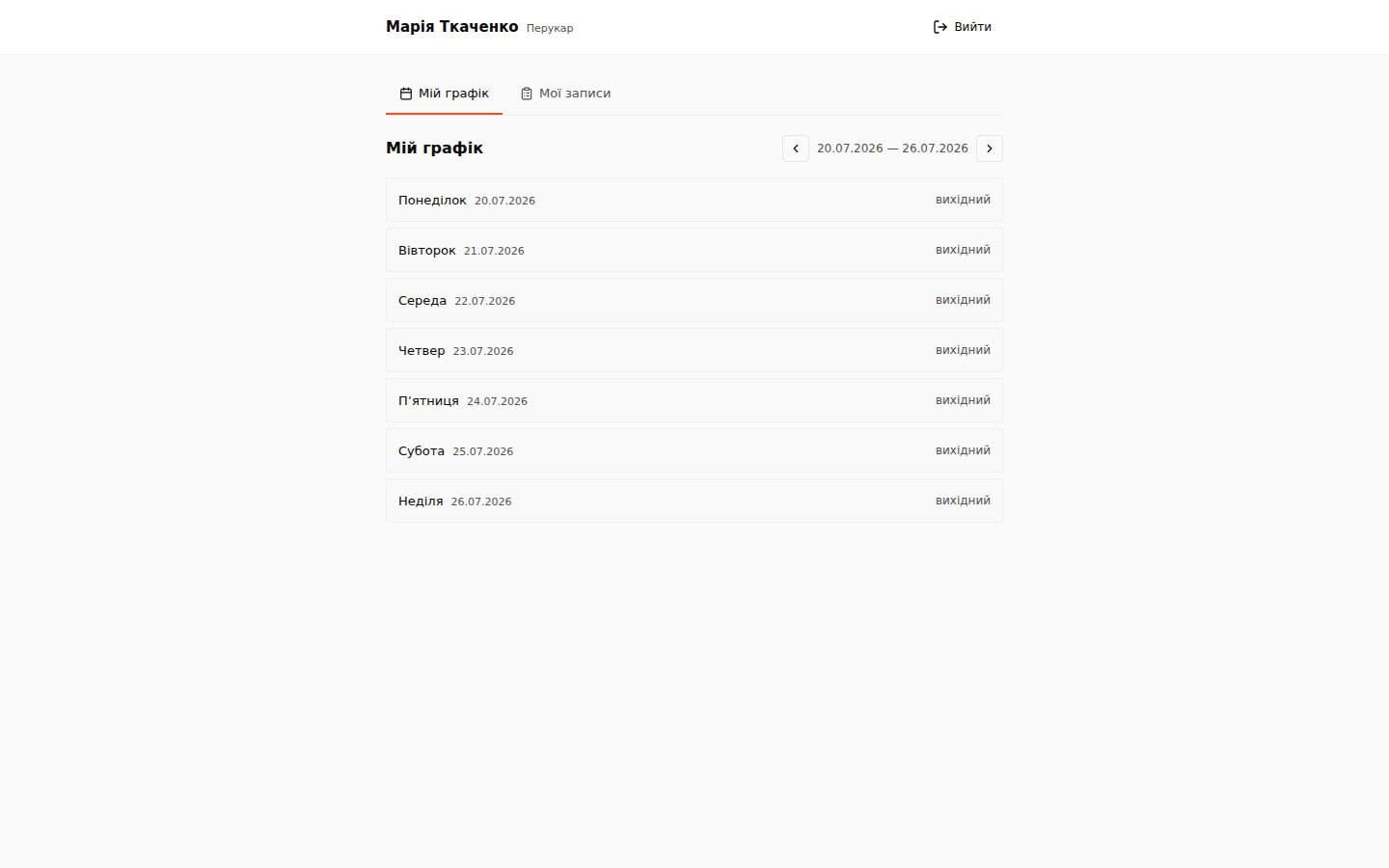
After signing in the employee lands in their own cabinet with two tabs:
- My schedule — working hours by day of week;
- My appointments — their visits.
Finances, the client base and business settings are not accessible to staff.
FAQ
The email didn''t arrive? Check the Spam folder and that the email in the card is correct. The invitation can be re-sent from the team member''s card.