No-show and cancellation
Not every appointment ends with a visit. The journal has two tools for that — no-show and cancellation.
Marking a no-show
In the appointment panel click “No-show” — a small dialog appears with a “Reason (optional)” field and a “Mark” button.
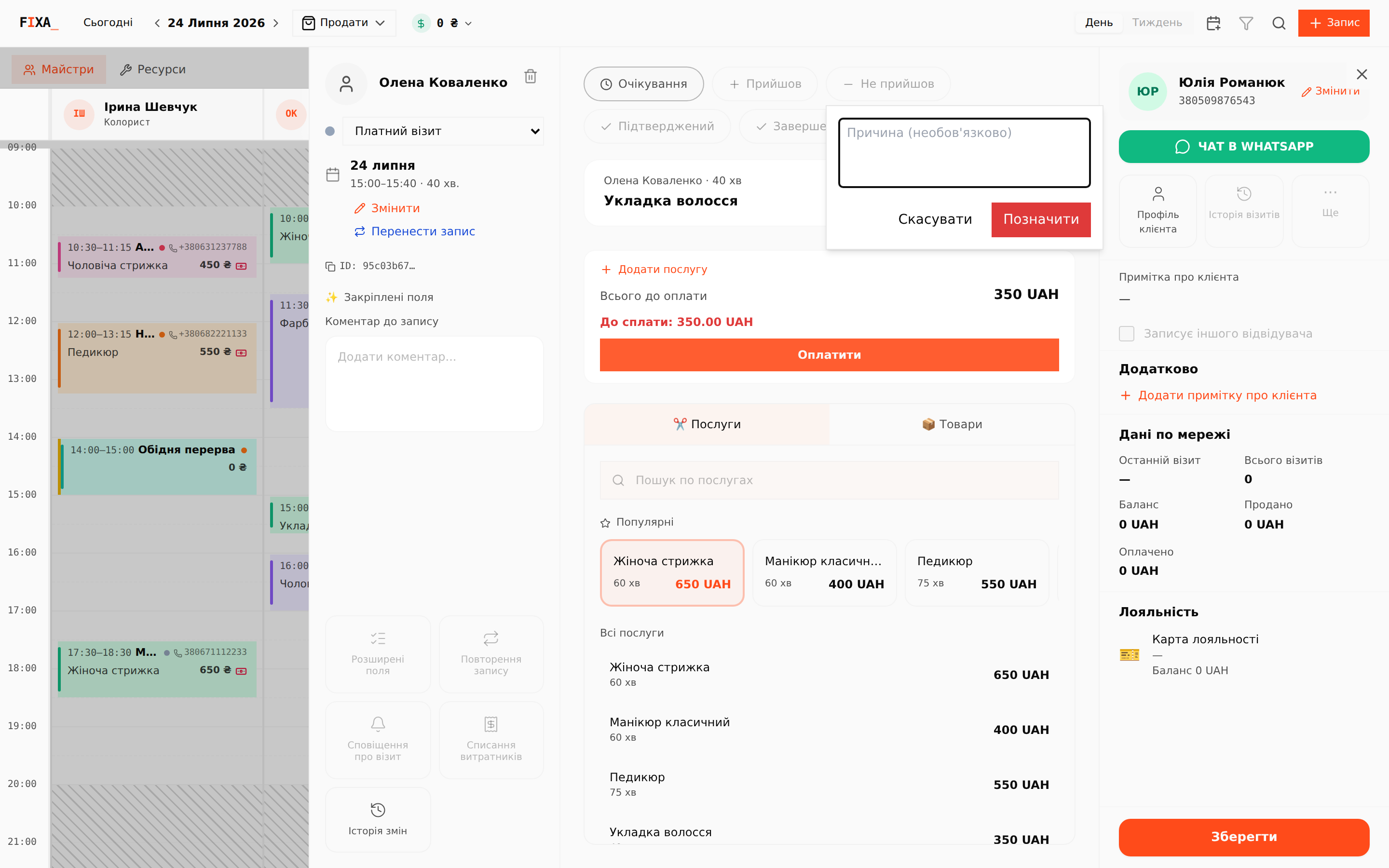
The card in the journal turns pink and the reason is saved in the change history.
Cancelling an appointment
The trash icon at the top of the panel opens the “Cancel appointment?” dialog. Enter the reason — it is stored in the change history as well.
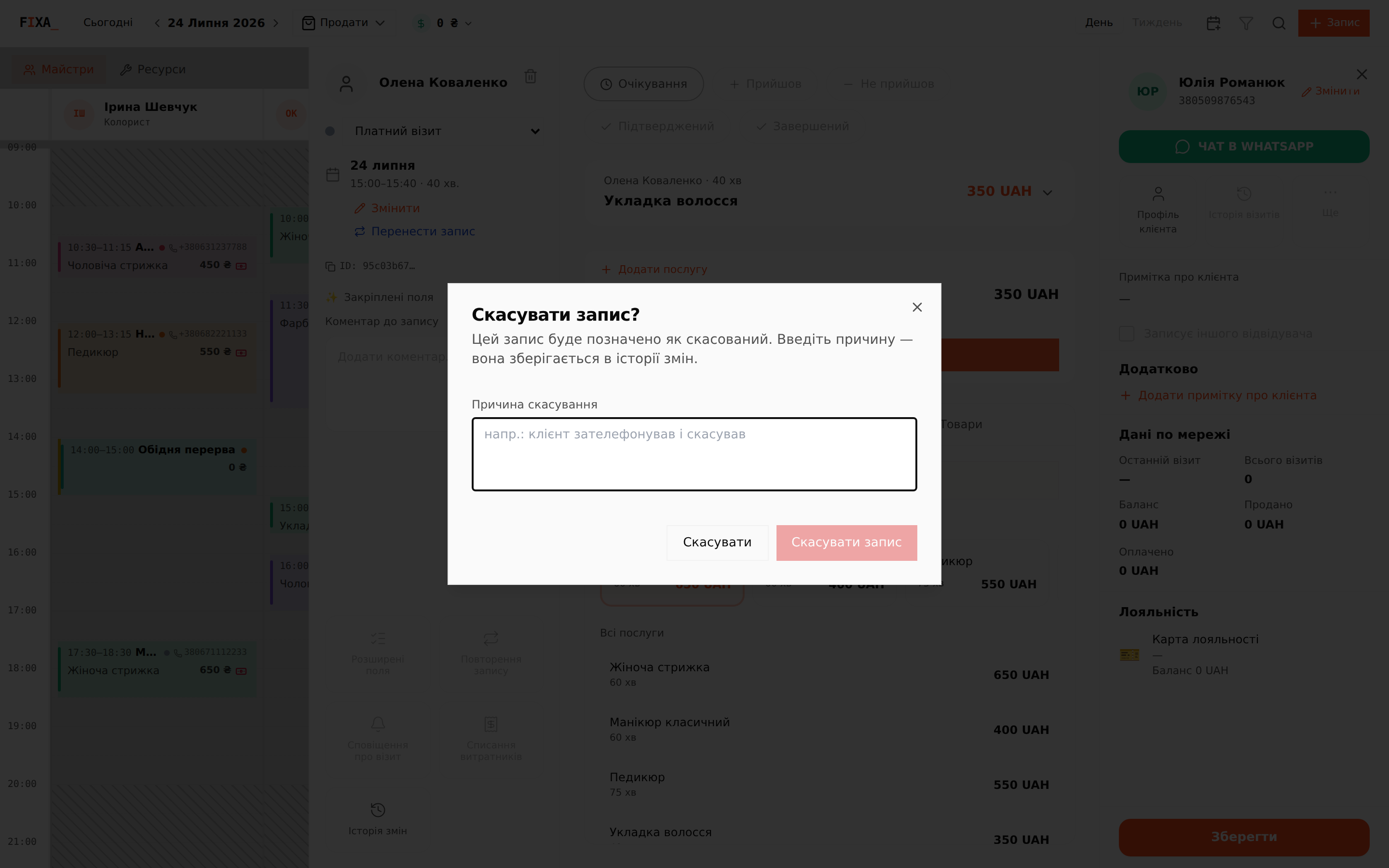
The cancelled appointment stays pink in the journal — you can always see how the day was actually planned.
What the client sees
If the client has connected your Telegram bot and the matching rules are enabled in “Integrations → Telegram”, they automatically get a cancellation message; there is a separate rule for no-shows. Setup is covered in Telegram notifications.
💡 The client can cancel the visit themselves with a button in the bot. The bot respects your cancellation window: too-late cancellations are not allowed.