Rescheduling an appointment
There are three ways to move an appointment — depending on where and how far you are moving it.
Within the day: “Edit”
In the appointment panel, under the date, click “Edit” — date, time and duration fields open up.
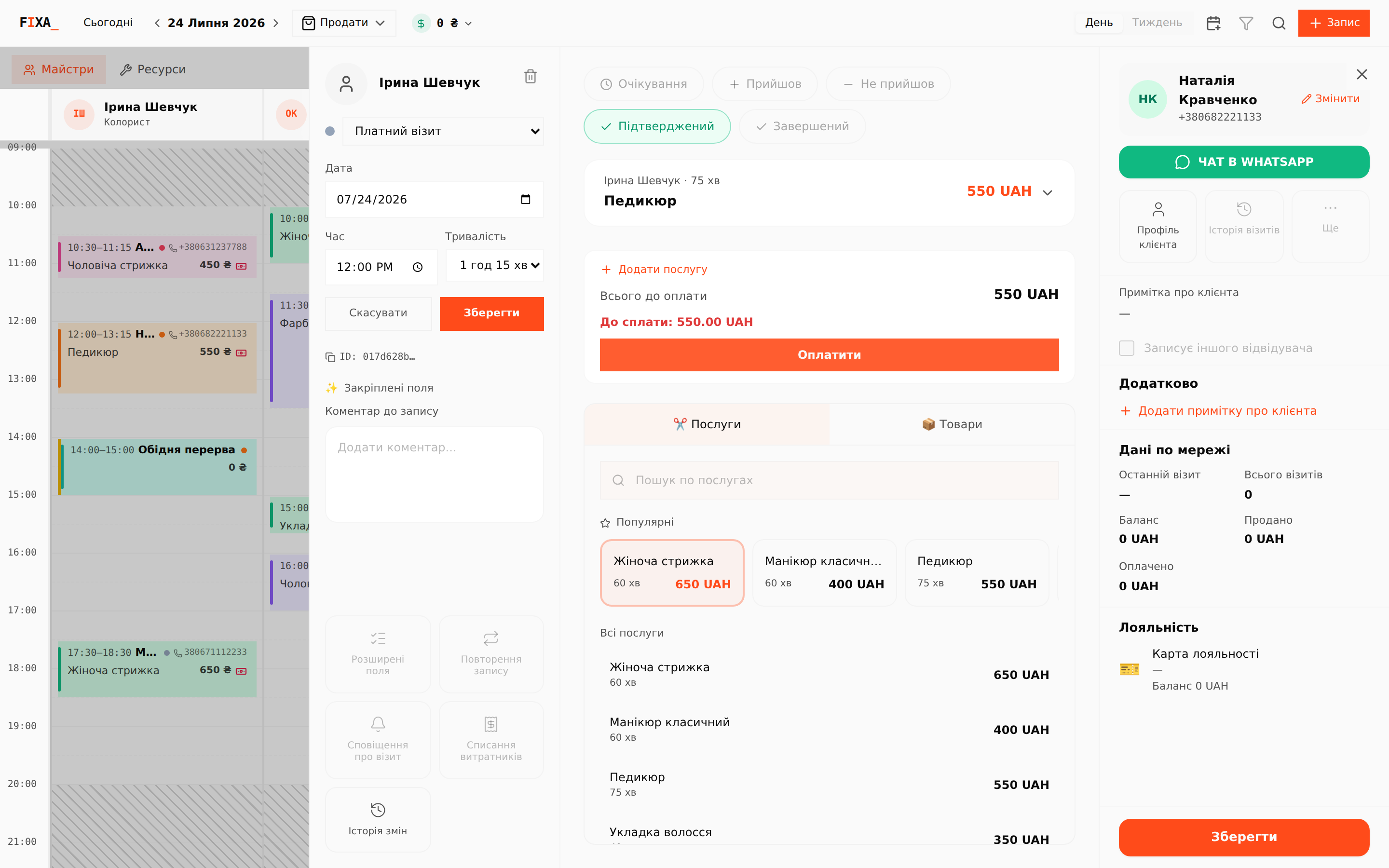
Works for the “Pending”, “Confirmed” and “Arrived” statuses while the visit is not fully paid. After full payment the fields are locked — use “Reschedule appointment” instead.
To another day or master: “Reschedule appointment”
The “Reschedule appointment” button opens a weekly grid: the performer is on top (you can change them), arrows flip the weeks, a click picks the new spot. A yellow draft block lands on the position and can be dragged with the mouse. The grid shows the master's existing appointments so you do not create an overlap, and the footer shows the “New: …” summary and “Save”.
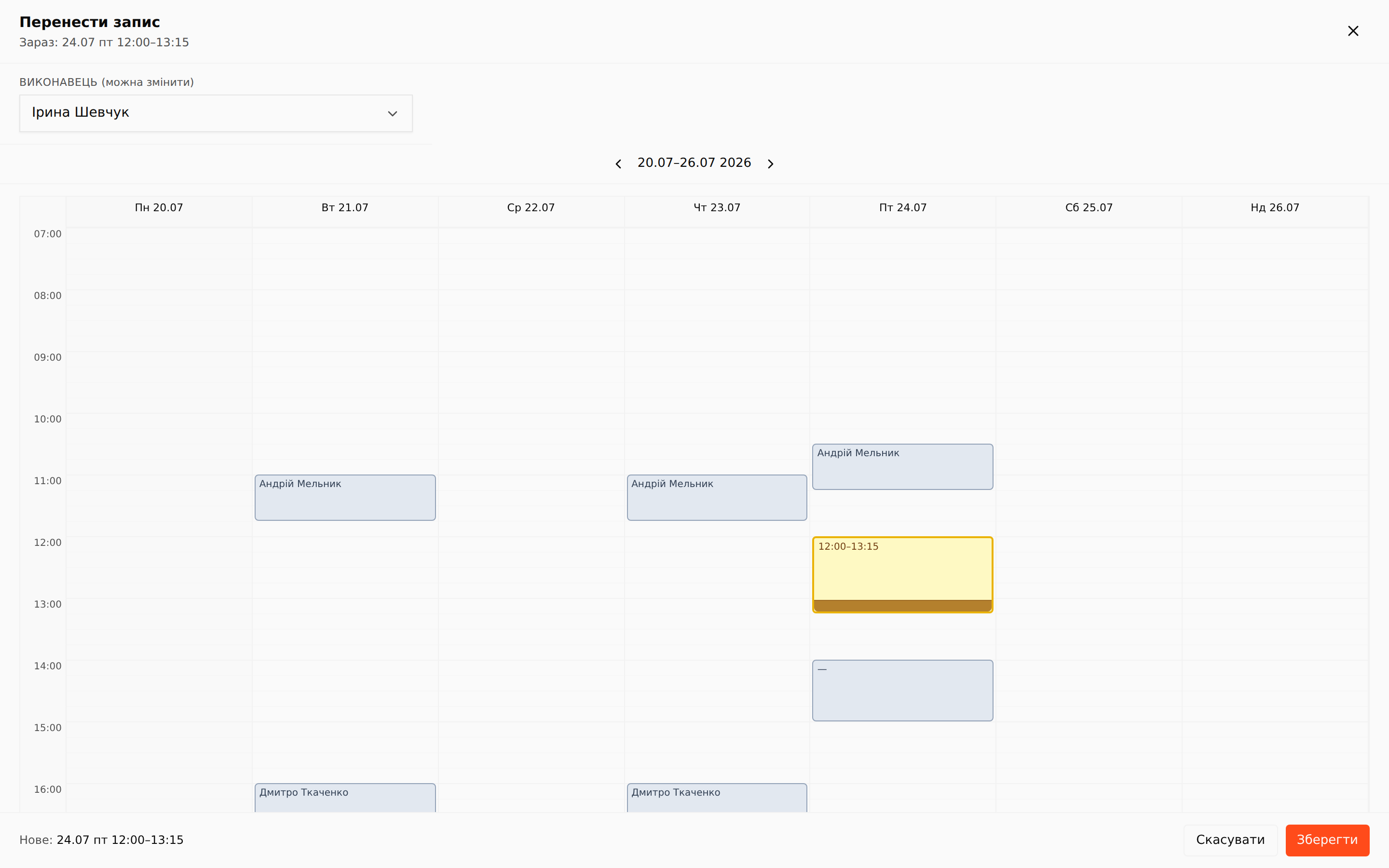
The move is recorded in the appointment's change history.
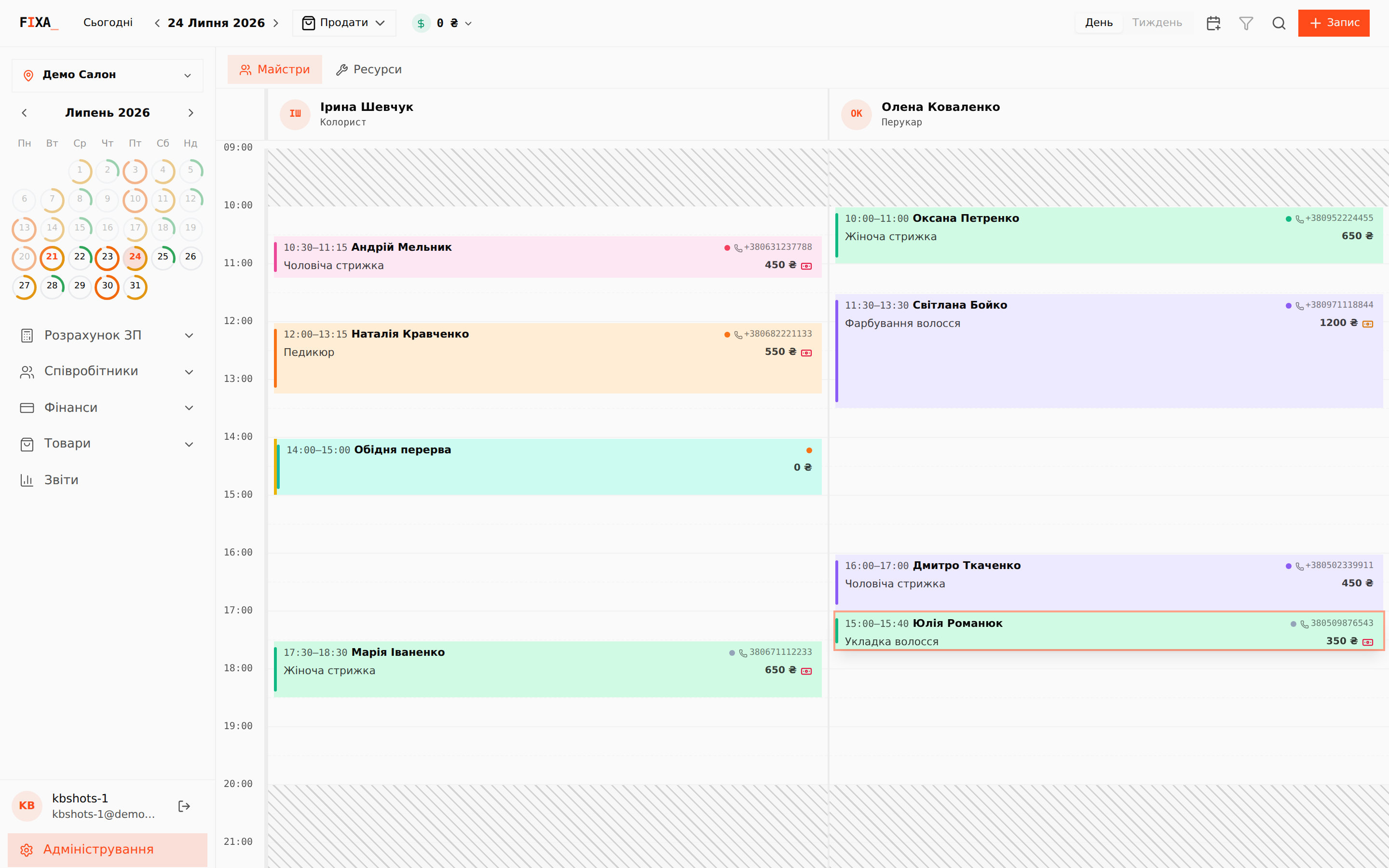
Drag-and-drop in the journal
Press and hold a card, then drag it to another time or another master's column. Drag the bottom edge to change the duration. The journal asks for confirmation before saving and warns about overlaps with other appointments.
💡 The client can reschedule the visit themselves — with a button in your Telegram bot, if bot booking is connected.