How to set up specialists' work schedules
The schedule defines when a specialist sees clients: it is visible in the journal and controls the free slots of online booking.
Set the hours for a day
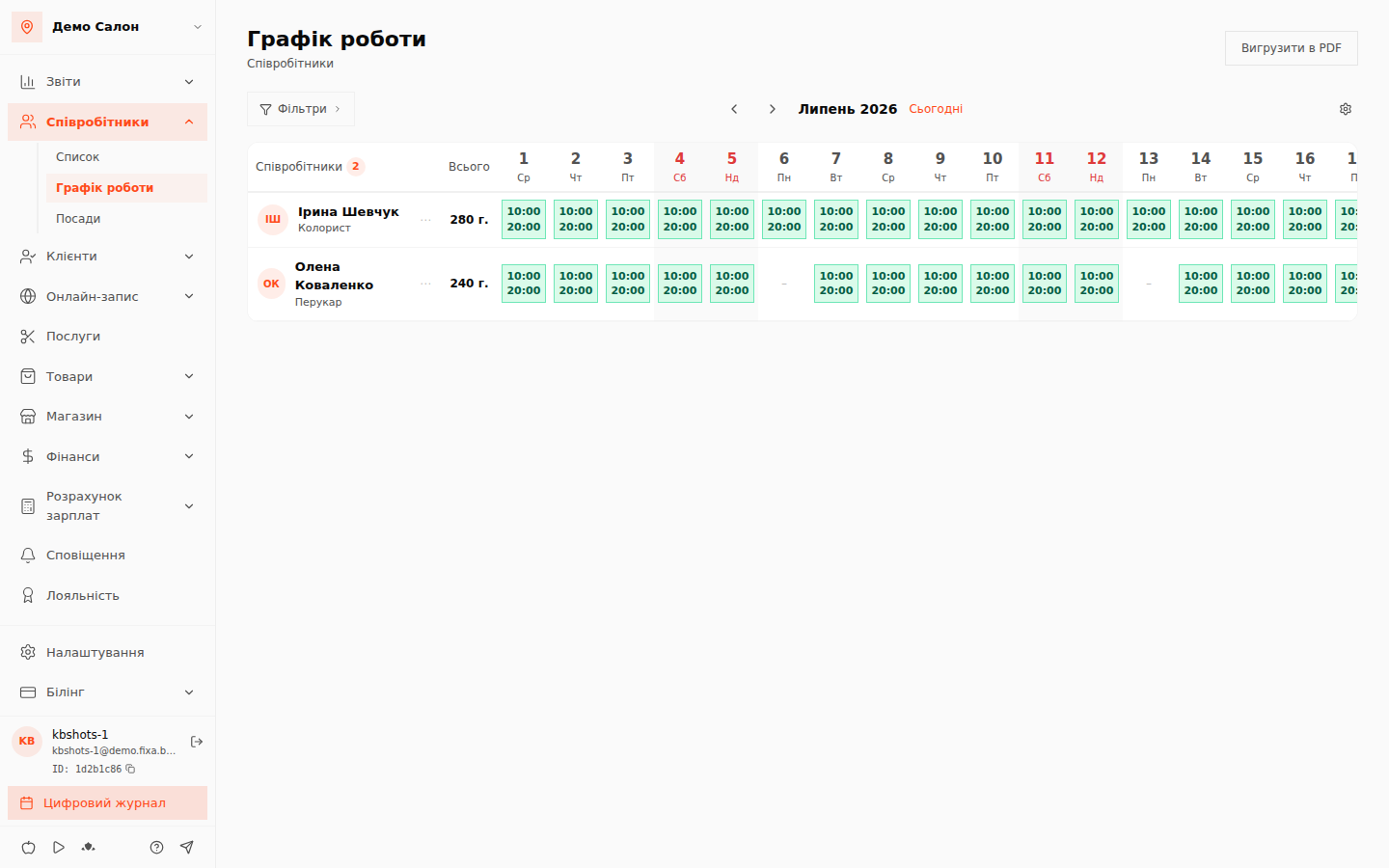
- Open “Співробітники → Графік роботи” (Employees → Work schedule) — a monthly grid: rows are specialists, columns are days.
- Click the cell of the day you need — set the start and end of the working day.
- A day without hours is a day off.
Weekly template
To avoid clicking every day one by one:
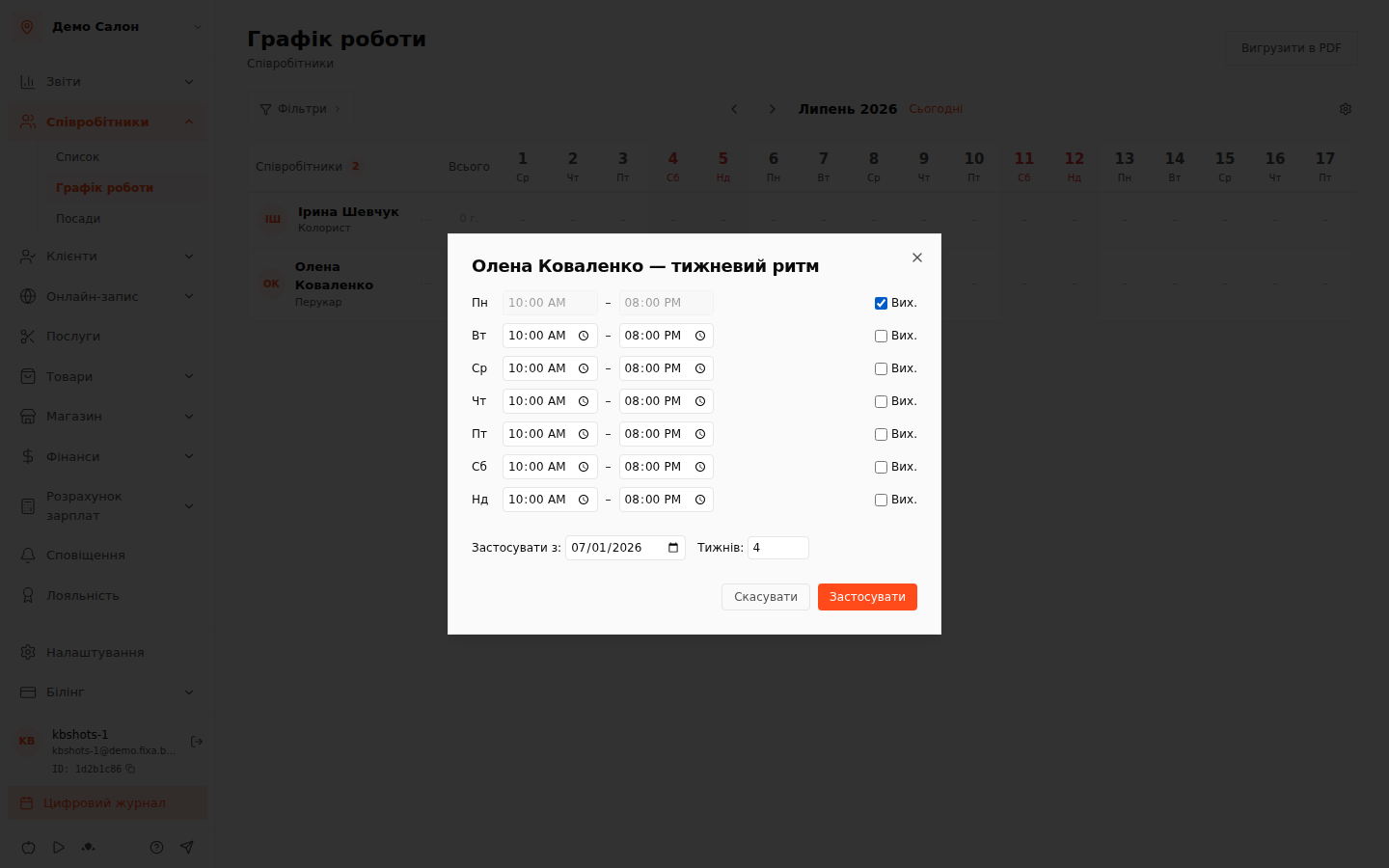
- Click “Налаштувати тиждень” (Set up week).
- Set the hours for each day of the week, choose the start date and the number of weeks.
- Apply — the system fills the schedule ahead and confirms: “Тижневий графік застосовано” (Weekly schedule applied).
💡 Tip: lunch or training is an appointment without a client (an internal block) with its own type; it blocks online booking slots. How to create one — in First appointment in the journal.
FAQ
Why is a specialist missing from the online booking widget? Check three things: the specialist has a schedule for the needed days, they are assigned to the service, and the service is available for online booking.
Managing the schedule right from the calendar
Click a team member's name in the journal column header to open the quick schedule menu:
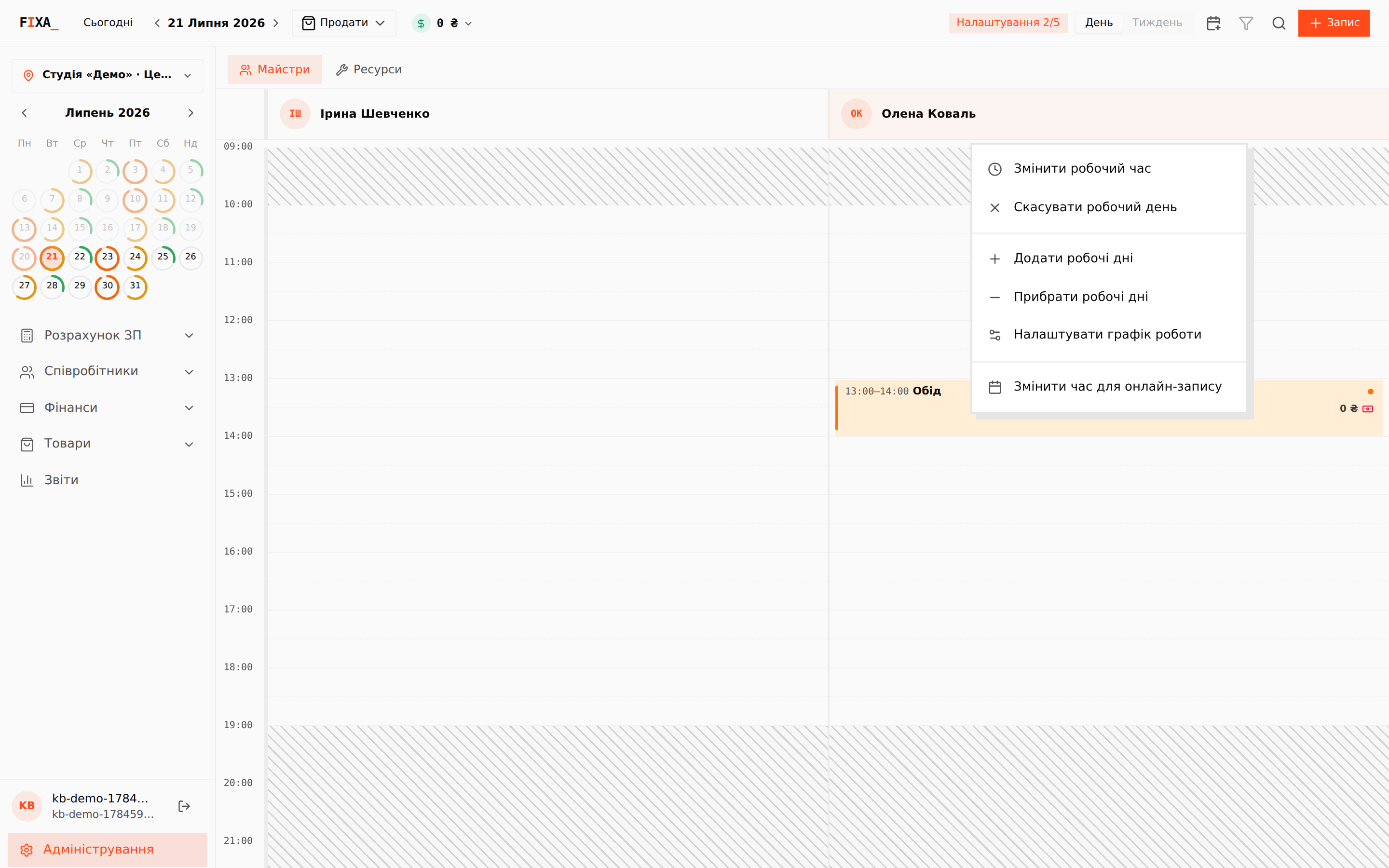
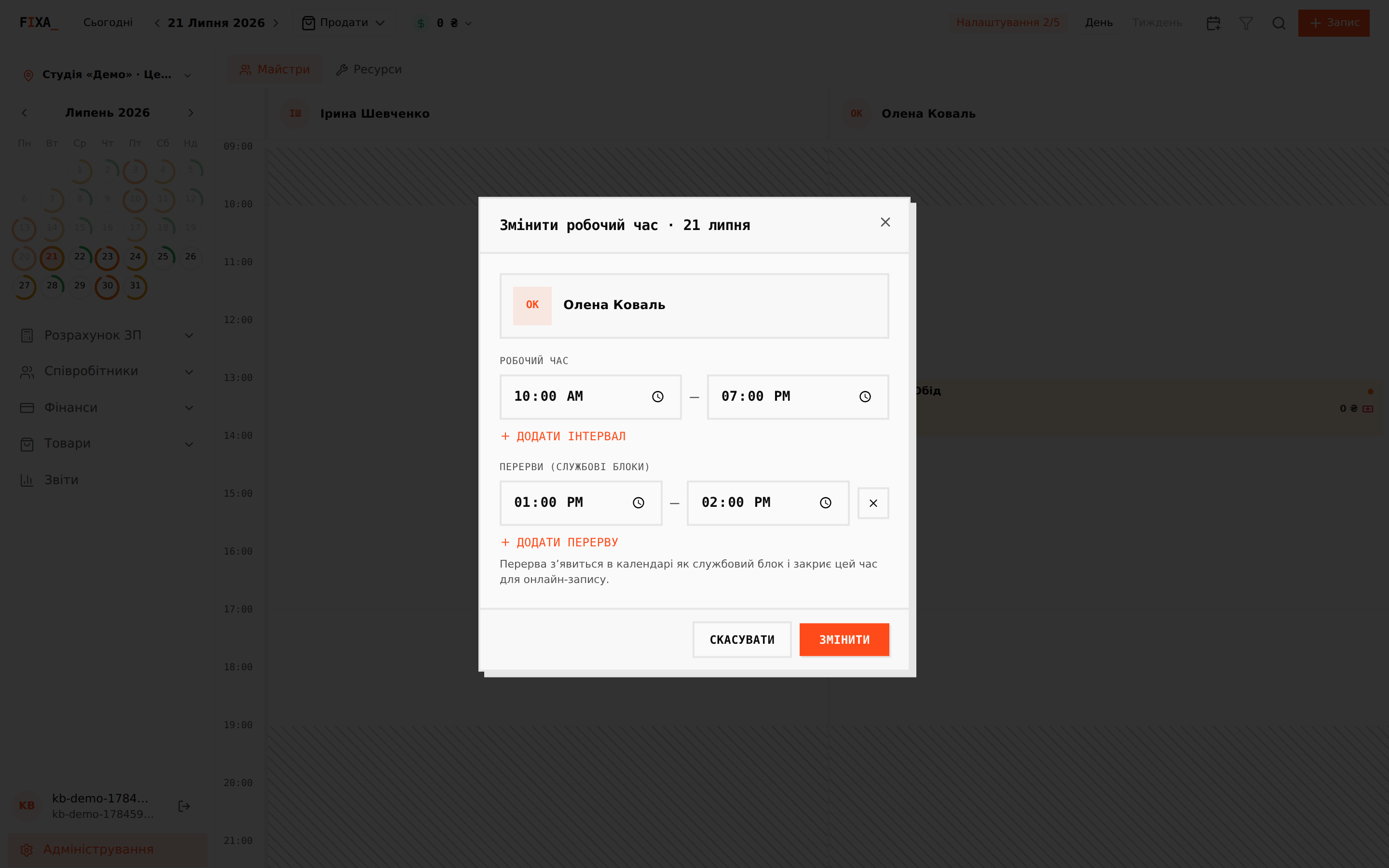
- "Edit working hours" — the day's intervals and breaks in one window. A break appears in the calendar as a service block and closes that time for online booking.
- "Cancel workday" — if the day has live client appointments, the system lists them and asks you to reschedule or cancel them first; an empty day is removed together with its service blocks.
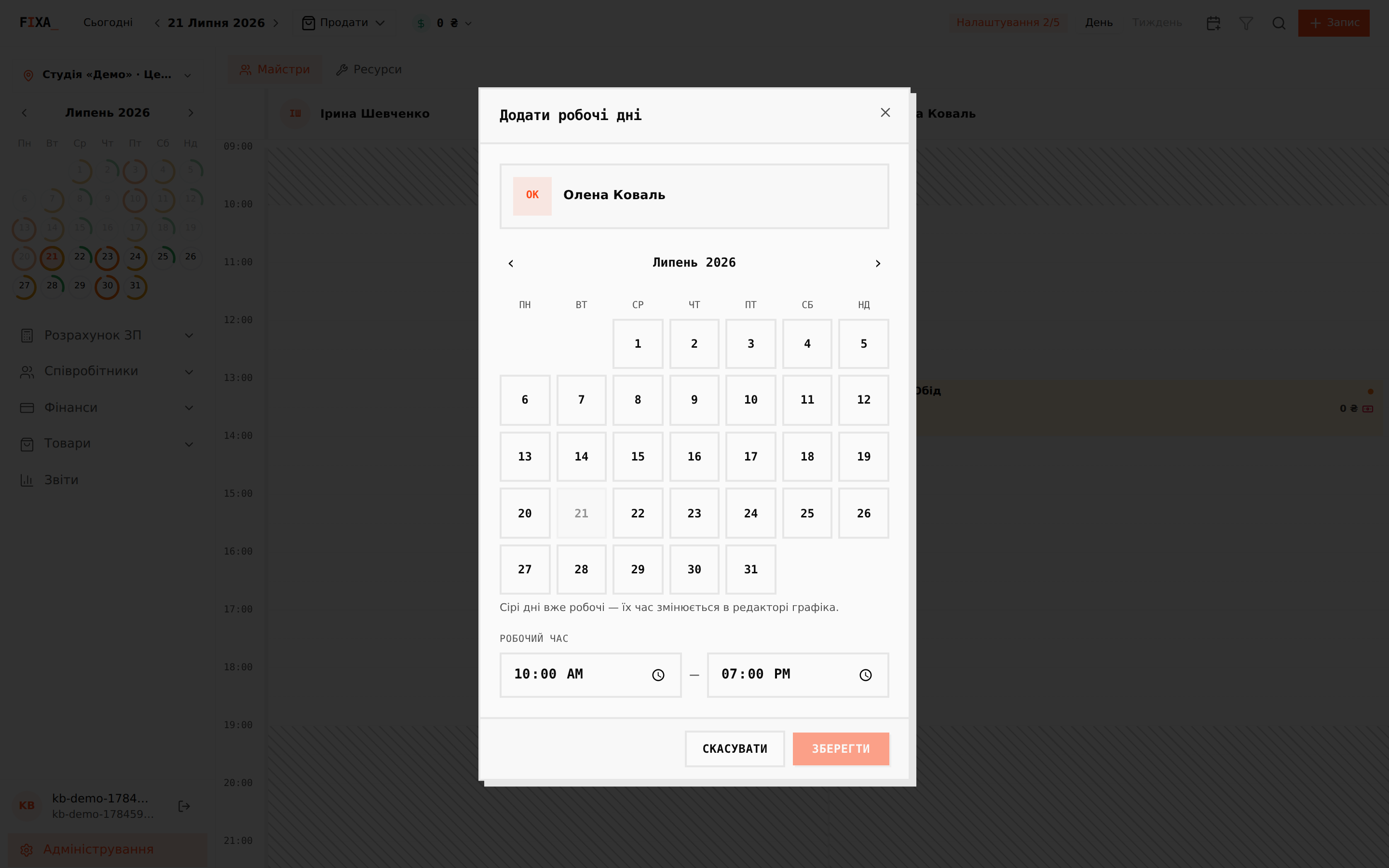
- "Add / Remove working days" — pick several dates in the month calendar and set the hours in one go.
- "Set up work schedule" — jump to the month editor with the team member highlighted.
Separate online-booking hours
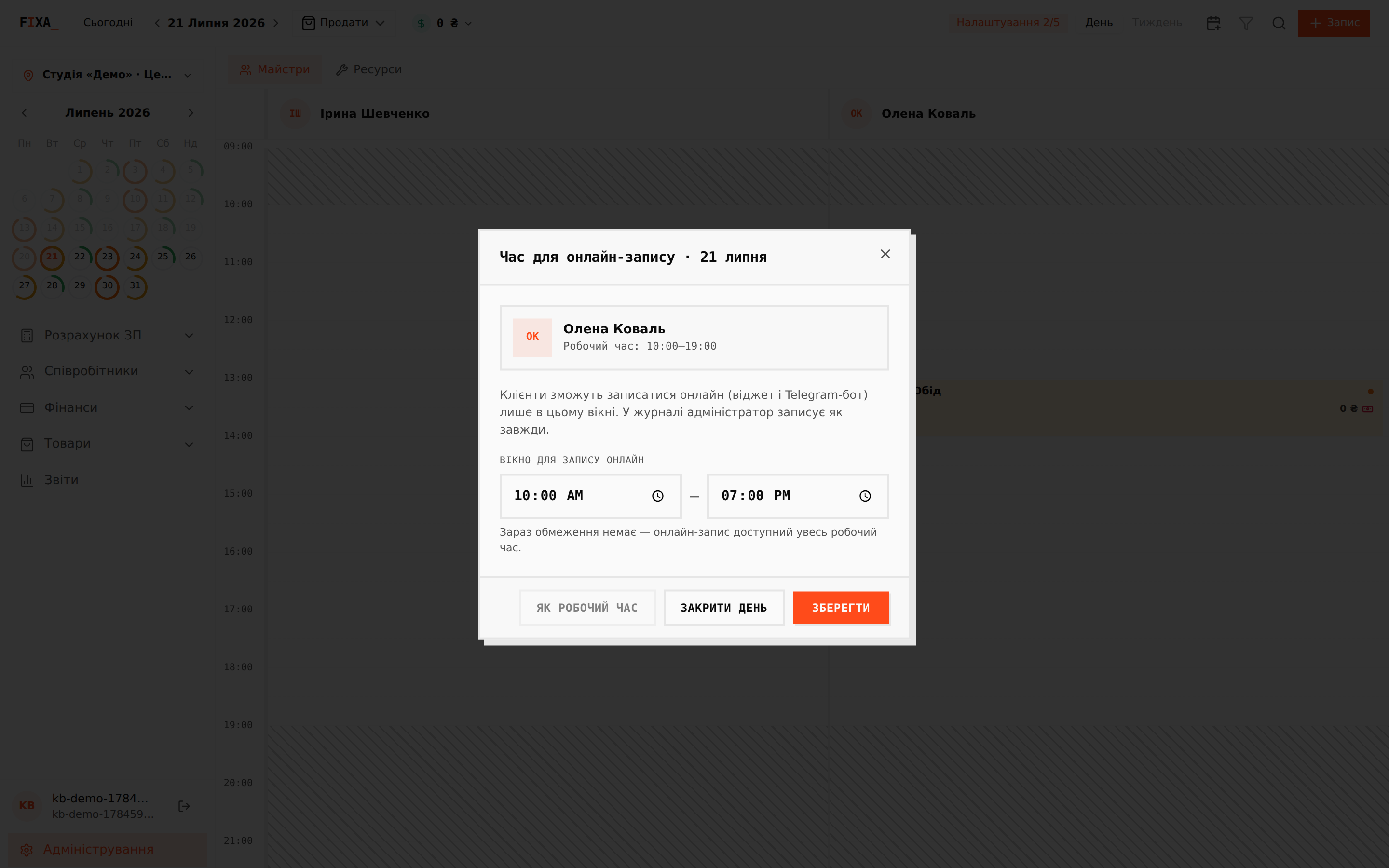
The specialist works 10:00–19:00 but takes online clients only until 18:00? Open "Change online booking hours" in the staff menu and set the window: the widget and the Telegram bot will only offer slots inside it, while the receptionist can still book any working time in the journal.
- "Close the day" — turn online booking off for this date entirely.
- "Same as working hours" — remove the limit.