Appointment statuses
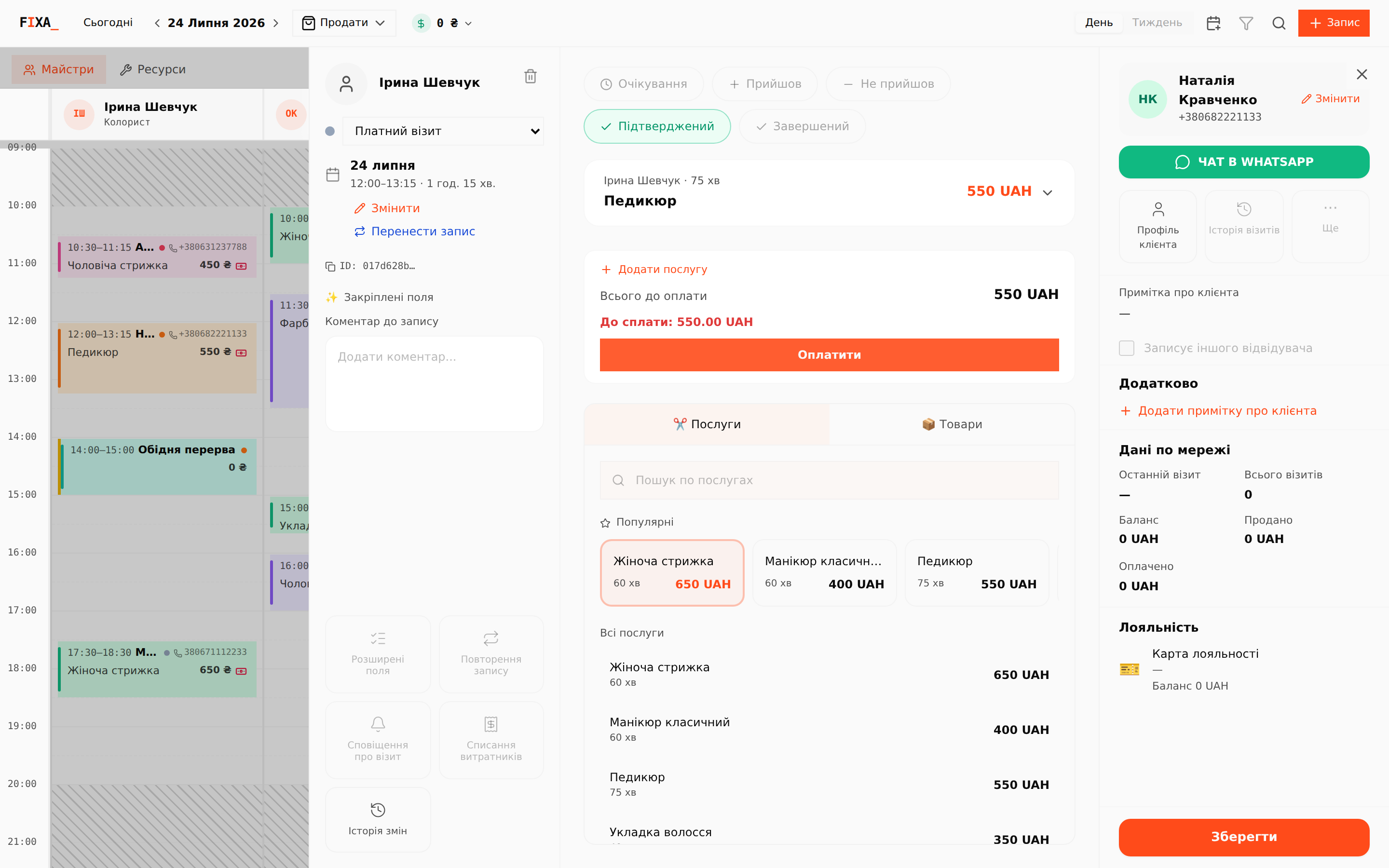
The status shows what stage a visit is at. It changes with one click — the top row of buttons in the appointment panel.
The statuses
- Pending — the appointment is created, the client has not confirmed yet. Gray dot on the calendar card.
- Confirmed — the visit is confirmed (orange dot). The client can confirm it themselves — with a button in your Telegram bot, if connected.
- Arrived — the client is in, the visit is in progress (violet dot).
- Completed — services delivered (green dot).
- No-show — marked via a small dialog with a reason (pink dot). More in “No-show and cancellation”.
The card background changes along with the dot: pink — no-show or cancellation, violet — client arrived, teal — prepaid visit, orange — confirmed but unpaid. The banknote icon shows the payment state.
What “Completed” does
This is the key status of the journal — it records that the visit actually happened:
- the master's payroll is accrued according to your calculation rules — payroll setup;
- materials are written off per the service tech cards — tech cards.
Complete visits the same day — payroll and reports stay accurate.
The after-payment hint
Once a visit is fully paid, the panel itself offers to complete it with a green banner — one click and the status is “Completed”.
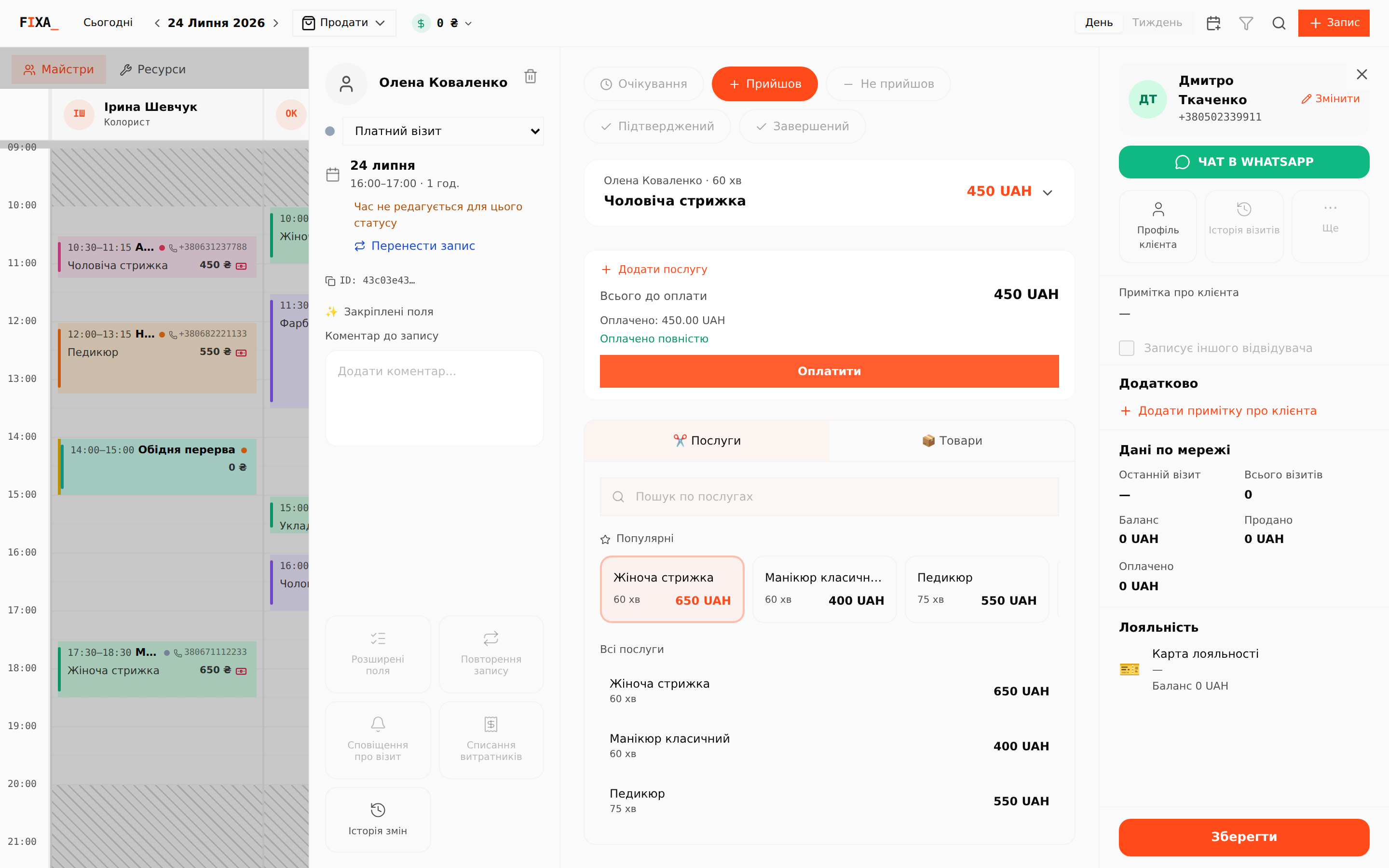
💡 After full payment the appointment time is locked — if the visit needs to move, use “Reschedule appointment”.